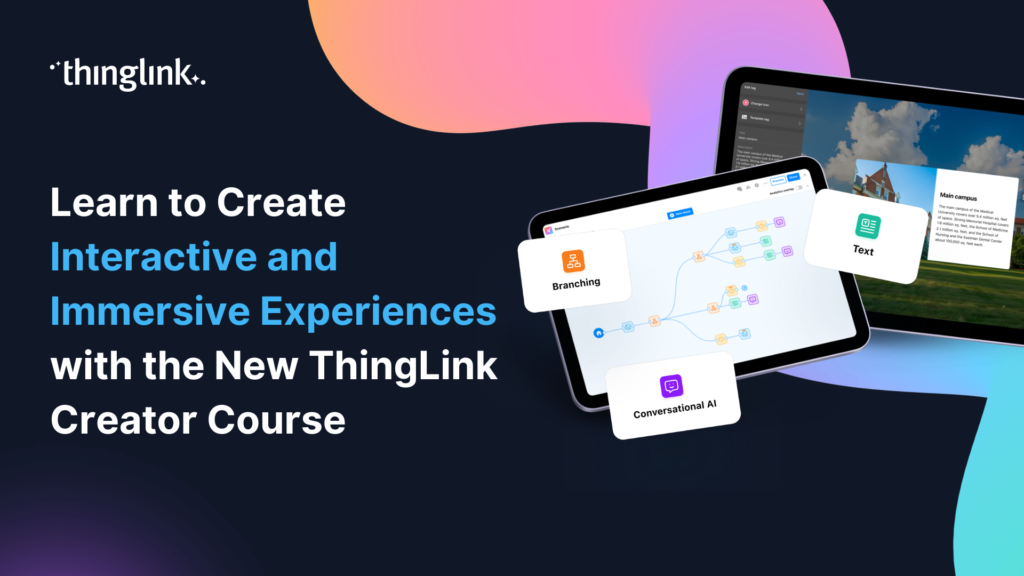
New Question and Activity Blocks in the ThingLink Scenario Builder
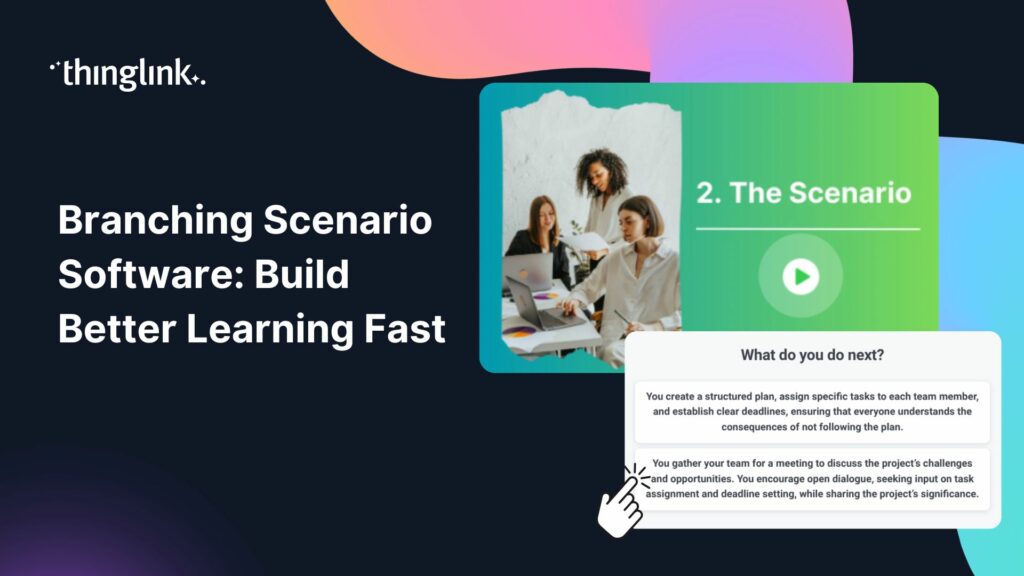
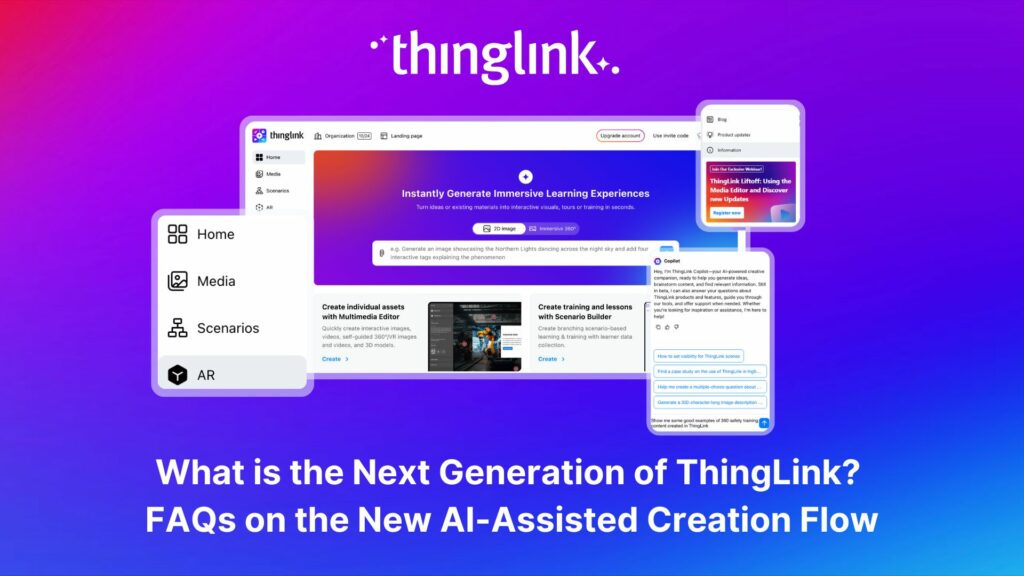
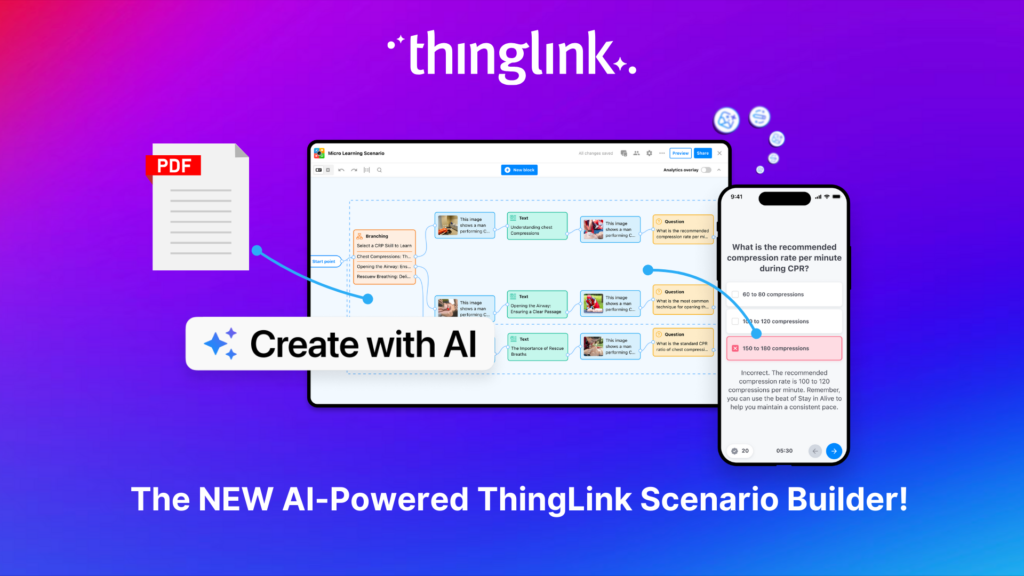
ThingLink Scenario Builder now includes an expanded range of Question and Activity blocks, giving creators more ways to collect learner responses and build interactive tasks into branching scenarios. The new block types support different response formats, from written reflections and multiple-choice questions to sorting, matching and image-based activities.
New Question Types in ThingLink Scenario Builder
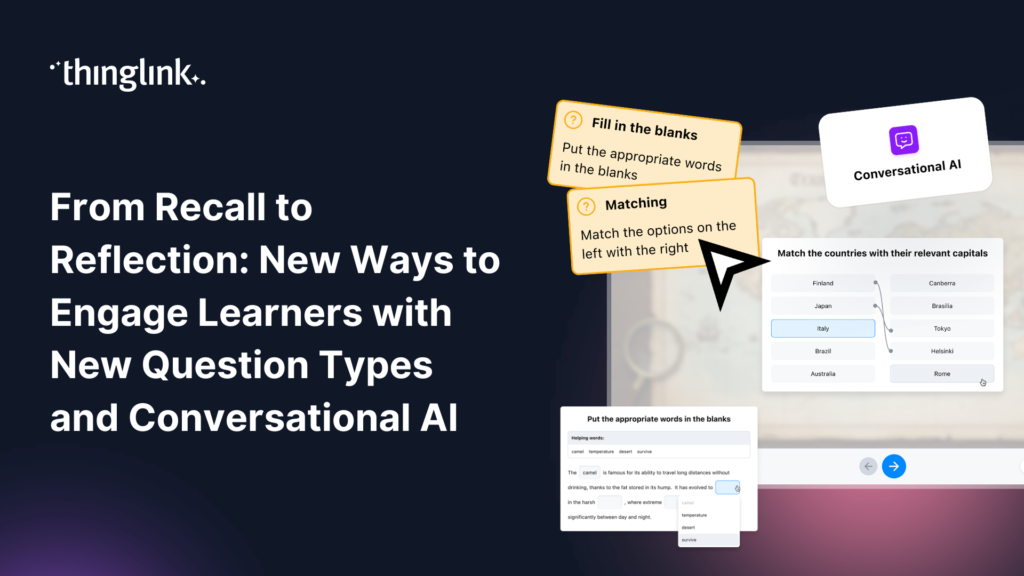
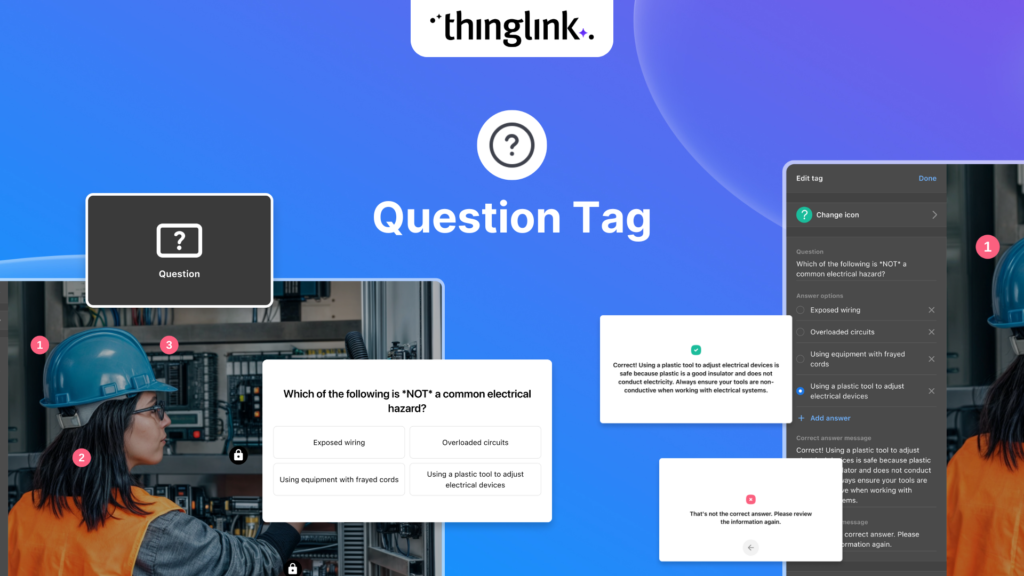
The Question block in ThingLink Scenario Builder includes four question types, offering a variety of response styles to match the intention and format of each question. Creators can choose from Multiple Choice, Correct Phrase, Open-Ended Question and Fill in the Blanks.
Each question type has its own settings and response behaviour, making it possible to collect written responses, check specific answers or ask learners to select from a range of options.
Here’s our support article with much more detailed information about the new Question block types.
1. Multiple Choice
Multiple Choice questions allow learners to select one or more answers from a list of options.
Creators can mark a single answer or several answers as correct. Learners can select multiple options, regardless of how many correct answers have been configured, and the answer options are displayed in a random order.
When several answers are marked as correct, the learner must select all the correct options and no incorrect options. Selecting only some of the correct answers, or including an incorrect answer, means the response is treated as incorrect.
Creators can add as many answer options as required and use checkboxes to identify the correct responses. An optional Wrong Answer Message can also be displayed following an incorrect selection.
Multiple Choice questions can include one image positioned above the question text. Supported image formats are JPEG, PNG and GIF, with a maximum file size of 25 MB. Images are fitted to a 16:9 aspect ratio.
2. Correct Phrase
Correct Phrase questions require the learner to type a specific answer.
The learner’s response is compared with the correct answer entered by the creator. Although answers are not case-sensitive, the wording, spelling and punctuation must otherwise match exactly. This question type is therefore best suited to short answers for which there is one expected response.
When creating a Correct Phrase question, the creator enters the question and the correct answer into the corresponding fields. An optional Wrong Answer Message can also be added and displayed when the learner submits an incorrect response.
3. Open-Ended Question
Open-Ended questions allow learners to submit a longer written response in their own words.
There is no predefined correct answer, and the learner can continue through the scenario after submitting any response. The learner’s answer is recorded as part of their scenario submission.
To create an Open-Ended question, the creator selects the Open-Ended Question type and enters the question into the Question field.
4. Fill in the Blanks
Fill in the Blanks questions ask learners to complete a piece of text by selecting and placing the missing words.
Learners choose from a shared list of answer options and place each answer into the appropriate blank. All blanks must be completed correctly before the learner can proceed.
Creators add instructions in the Question field and enter the main passage in the Text field. Blanks are created by selecting a position within the text and choosing Add Blank. Each blank is represented by a number and linked to its corresponding answer field.
An optional Wrong Answer Message can also be added and displayed when the learner does not complete all the blanks correctly.
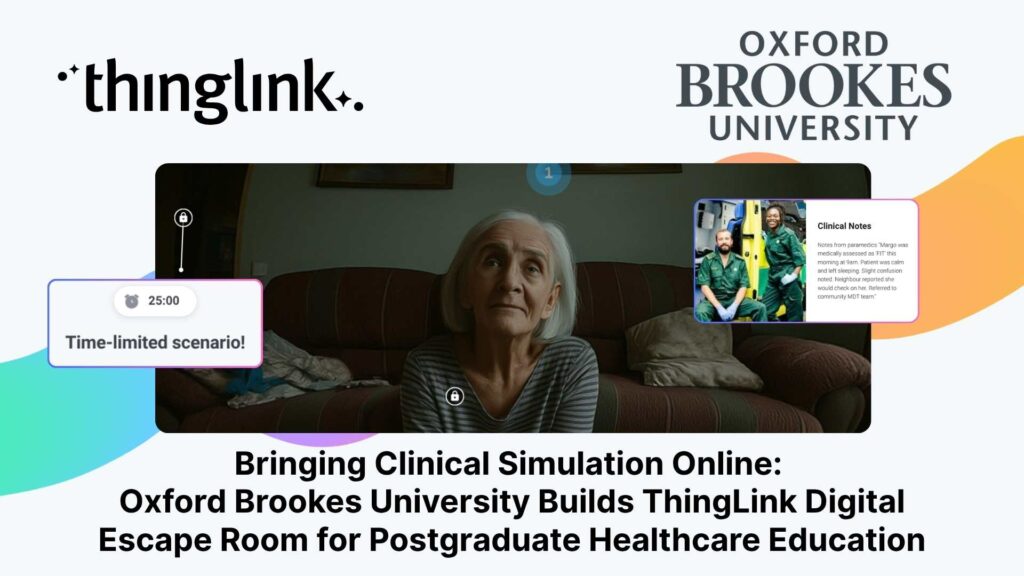
Questions in Action: A Demonstration Scenario
New Activity Types in ThingLink Scenario Builder
The Activity block in ThingLink Scenario Builder allows learners to complete an interactive task before continuing through a scenario.
There are three Activity block types: Grouping, Matching and Pick a Point. These activities allow learners to organise information, create one-to-one connections or identify specific areas within an image.
Learner responses are saved, and creators can add an optional Wrong Answer Message to provide feedback when an incorrect response is submitted.
For more traditional question formats, creators can use the separate Question block, which supports Multiple Choice, Correct Phrase, Open-Ended Question and Fill in the Blanks.
Here’s our support article with much more detailed information about the new Activity block types.
1. Grouping
Grouping activities ask learners to sort items into the correct groups or categories.
When the activity opens, learners see the group names alongside a mixed collection of answer options. They can place each answer into a group by dragging it or by selecting the answer followed by the relevant group.
Creators can add multiple groups and answers, with no fixed limit on the number that can be included. However, for usability, it is recommended that activities contain no more than four to eight groups and no more than ten answers within each group.
Images can also be added to groups and individual answers. Group images appear as background images, while answer images are displayed next to the corresponding answer text.
By default, learners only need to place each item into the correct group. An optional Strict Order Within Groups setting can also be enabled. When this setting is active, learners must place the items in the correct group and arrange them in the order established by the creator.
2. Matching
Matching activities ask learners to connect items into one-to-one pairs.
Learners are presented with two columns of items and must pair each item in one column with its corresponding item in the other. The items are displayed in a random order, and all pairs must be matched correctly before the learner can proceed.
Each item can belong to only one matching pair. Where an answer could be associated with several items, a Grouping activity is more appropriate.
Creators can add as many matching pairs as required and can include an optional Wrong Answer Message to provide feedback following an incorrect submission.
3. Pick a Point
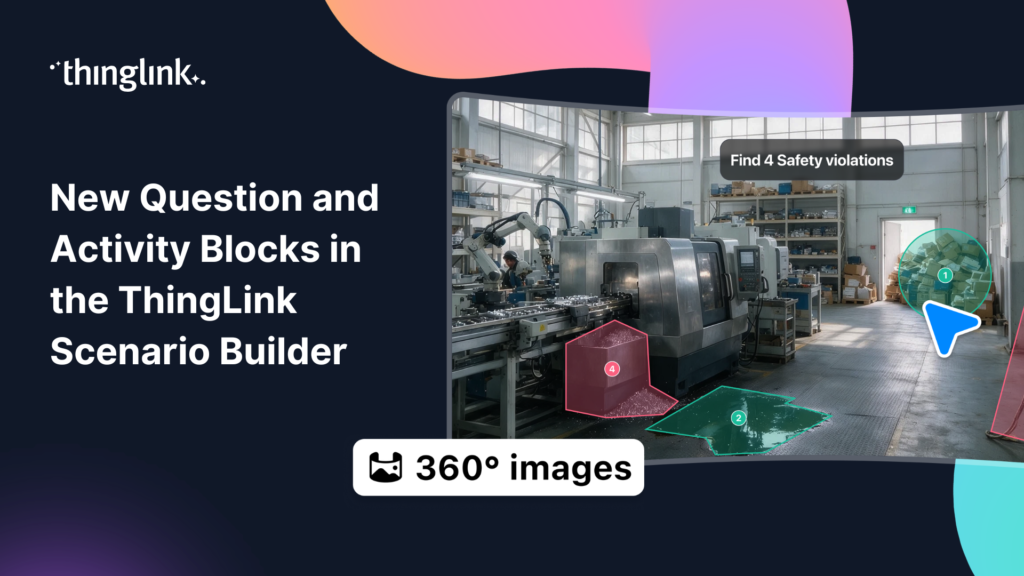
Pick a Point activities ask learners to find and select one or more marked areas within a 2D or 360° image.
Creators upload an image and draw rectangular, circular or freeform interactive areas over it. Each area is given a title and marked as either correct or incorrect. Correct areas are the locations learners need to select, while incorrect areas can be added as distractors.
When learners open the activity, they see the image and the accompanying prompt. Selecting a marked area displays its title as a label.
For 360° activities, creators can upload an equirectangular image with a 2:1 aspect ratio and a maximum resolution of 8192 × 4096 pixels. Navigate mode is used to move around the image, while Draw Area mode is used to create the interactive areas. Marked areas cannot overlap.
Pick a Point also includes two optional settings.
Strict Sequence of Answers requires learners to select the correct areas in the exact order established by the creator.
Counter of Found Objects shows learners how many correct areas they have found and how many remain. It also displays a list of the areas already identified.
An optional Wrong Answer Message can be displayed when a learner selects an area marked as incorrect.
Activity Responses and Analytics
Learner responses to Activity blocks can be reviewed by exporting the scenario data or by viewing individual learner sessions through the analytics dashboard associated with the landing page.
When a learner submits an incorrect response and a Wrong Answer Message has been added, the message is displayed and the learner can try again. When no Wrong Answer Message has been configured, the learner can move to the next block even if the submitted response is incorrect.
As of June 2026, Activity blocks are not supported in ThingLink XR. Support for Activity blocks in XR is planned for a future product update.