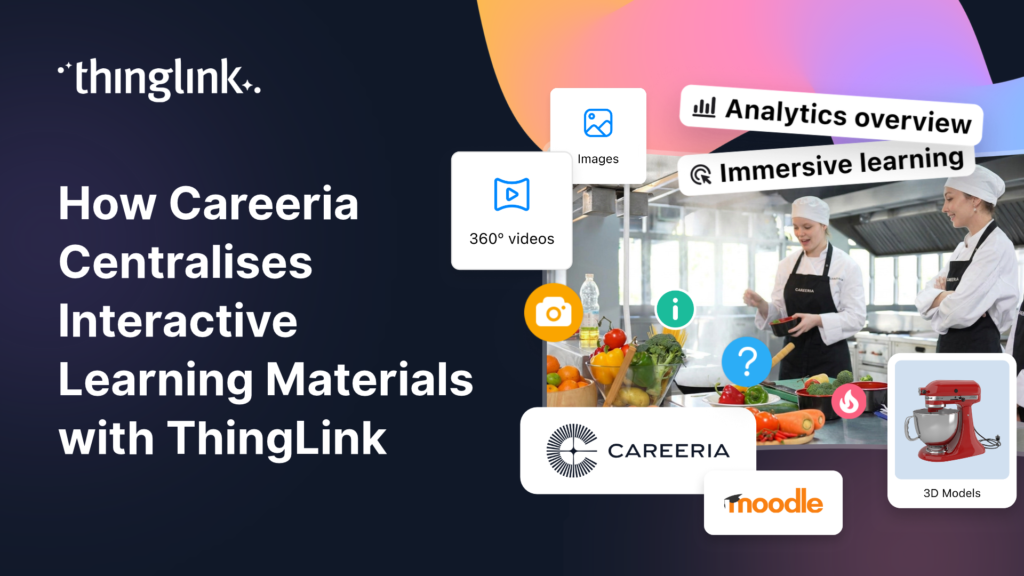
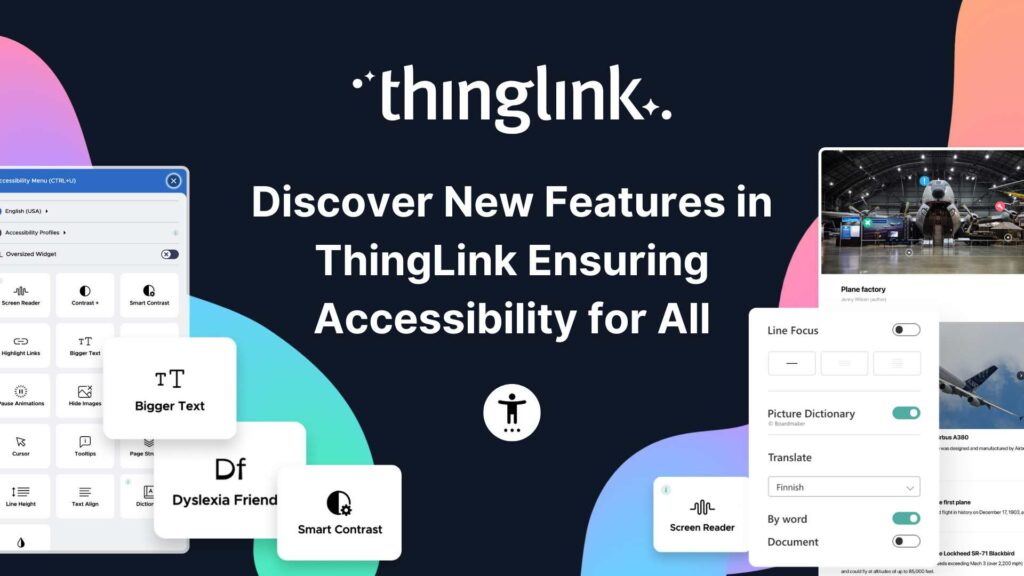
What if every learning material you created was automatically accessible, instantly translatable, and embeddable anywhere without a single login headache? For Careeria,...
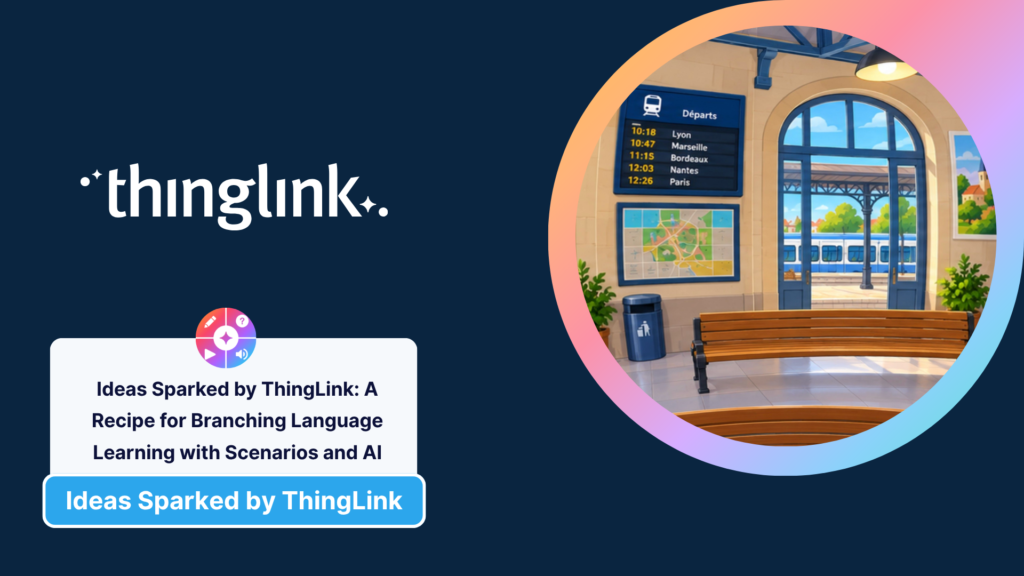
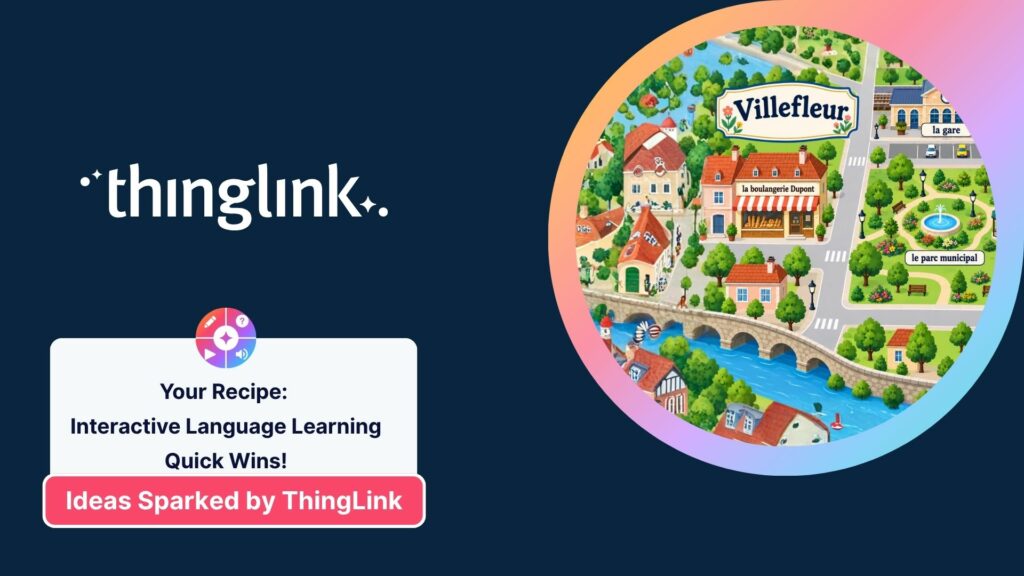
This is a recipe for taking the interactive and immersive language-learning experiences we created in our first two activities and building them into a branching...
 Louise Jones
11 min read
Louise Jones
11 min read
This is a recipe for taking a simple interactive language-learning activity and building it into a connected immersive experience using the ThingLink Multimedia...
Louise Jones
12 min read
This is a recipe for creating interactive language-learning experiences with ThingLink, using visual prompts, AI, audio, questions and everyday contexts to help...
Louise Jones
10 min read
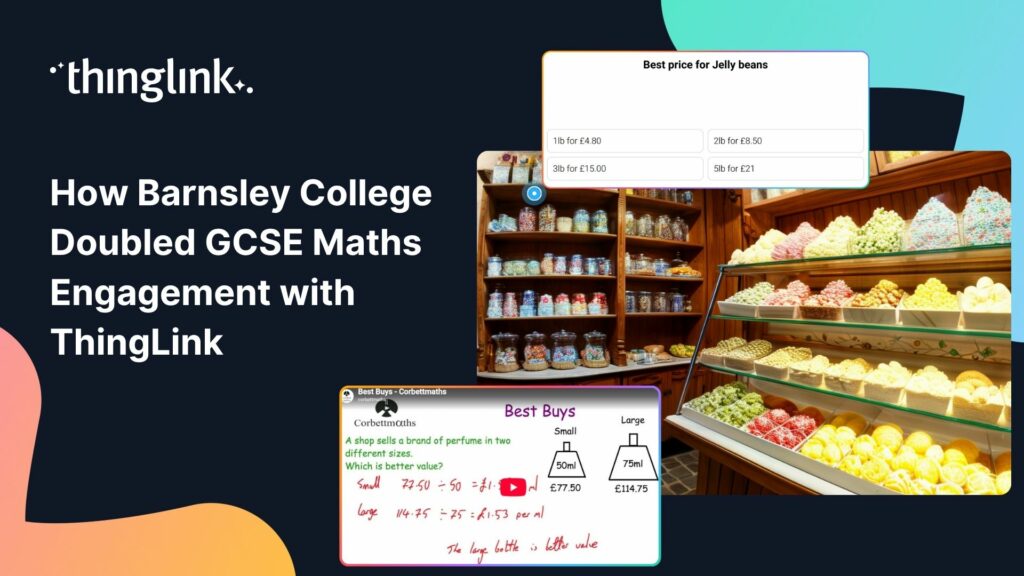
The Background Barnsley College is a Further Education college in South Yorkshire, England, which caters for over 8000 students across a number of campuses. It...
As schools navigate the shift toward proactive, interactive and deep learning, teachers need practical tools that make student thinking and agency visible....
Virtual reality headsets are an incredibly powerful way for learners to explore immersive learning experiences. By placing learners inside an environment and allowing...
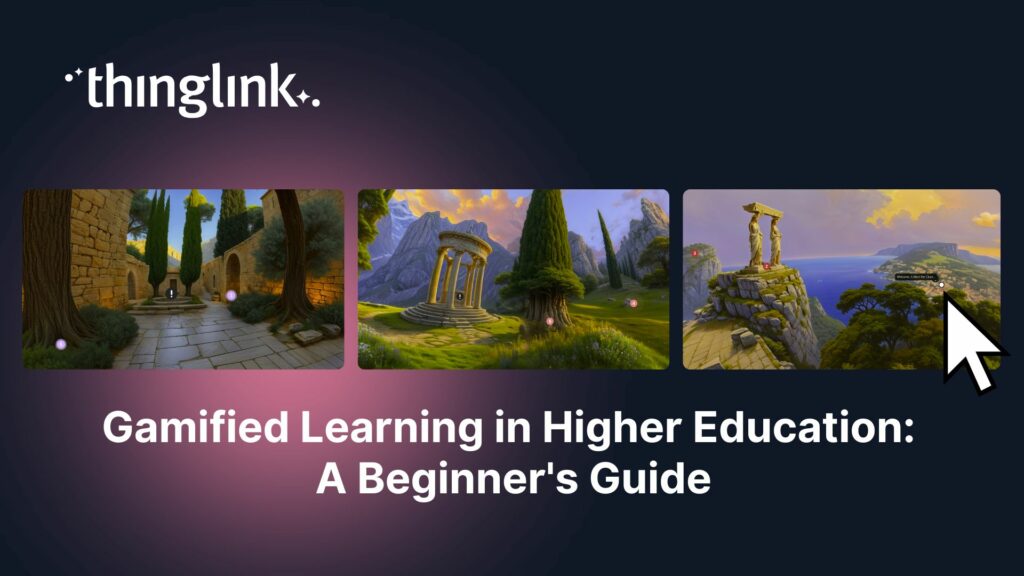
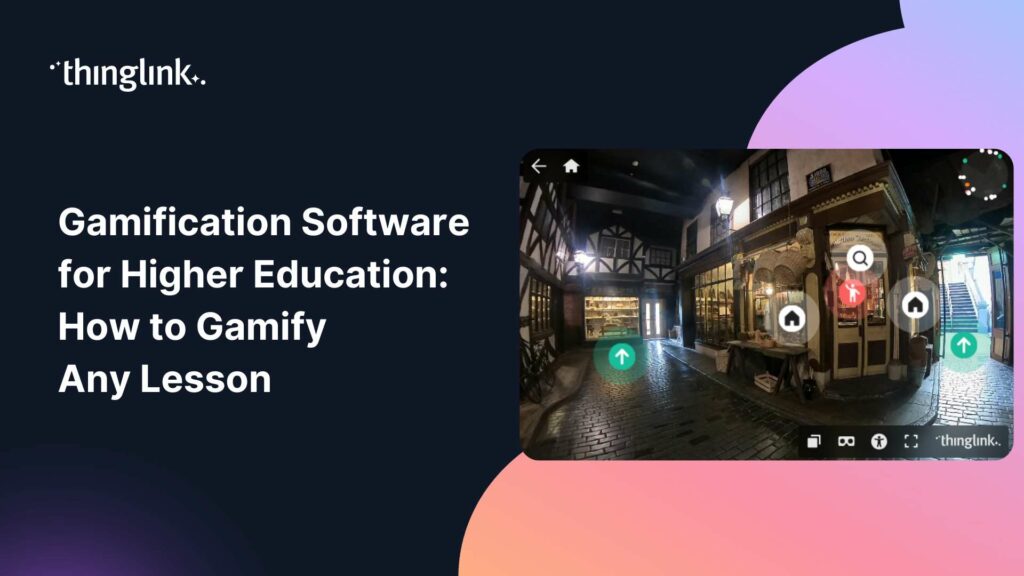
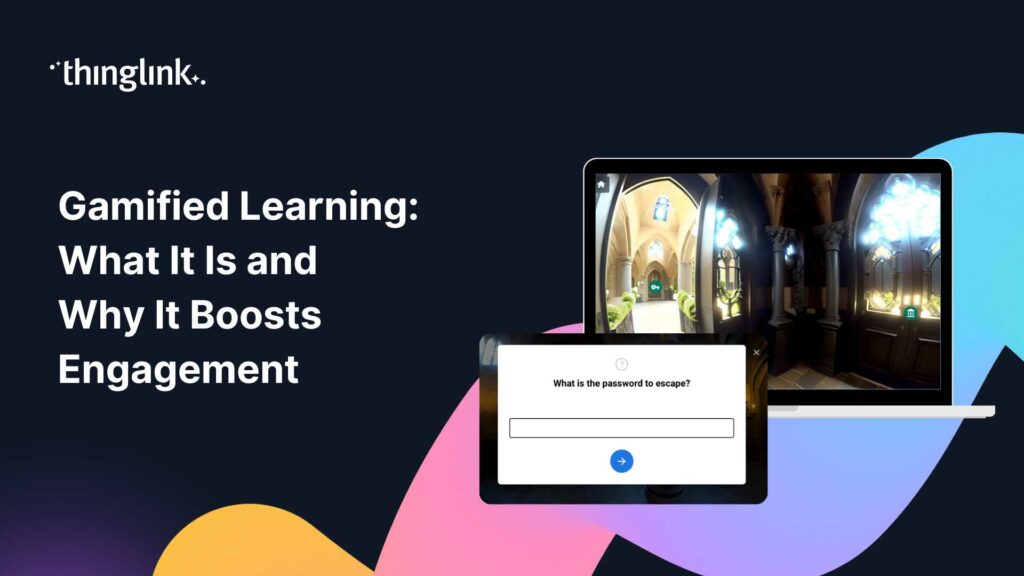
What if your students were so absorbed in a learning activity that they forgot they were being assessed? That is the promise of gamified learning, and it is more...
Ideas Sparked by ThingLink: A Recipe for an Interactive Escape Room This is the recipe to build a ThingLink escape room using the ThingLink Multimedia Editor. Looking...
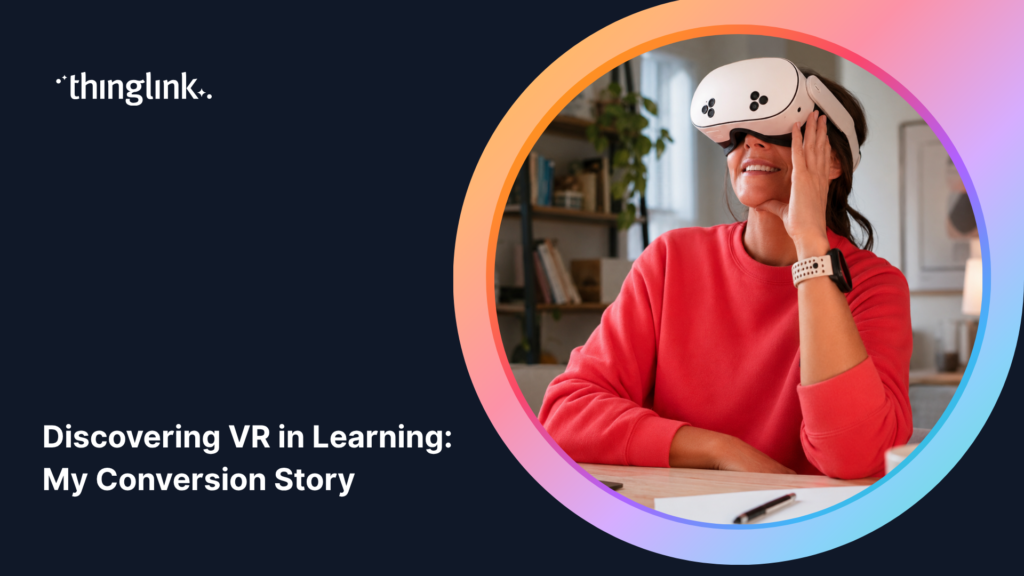
I’ll Be Honest: I Used to Keep VR at Arm’s Length If you have ever felt slightly suspicious of VR headsets in education, or thought they were a bit ...
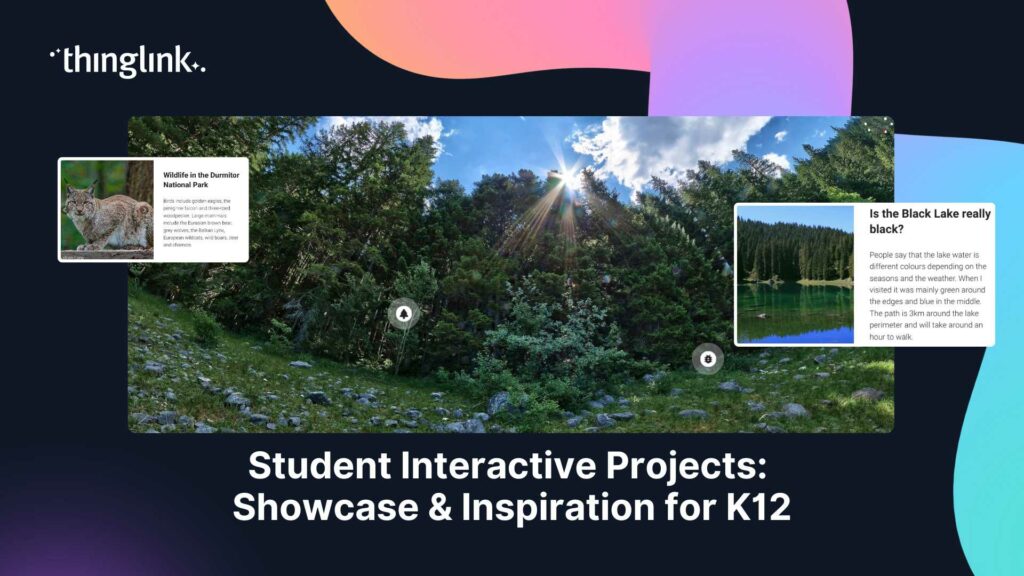
What if your students did not just study a topic, but actually built something with it? Student interactive projects flip the script on traditional assessments....
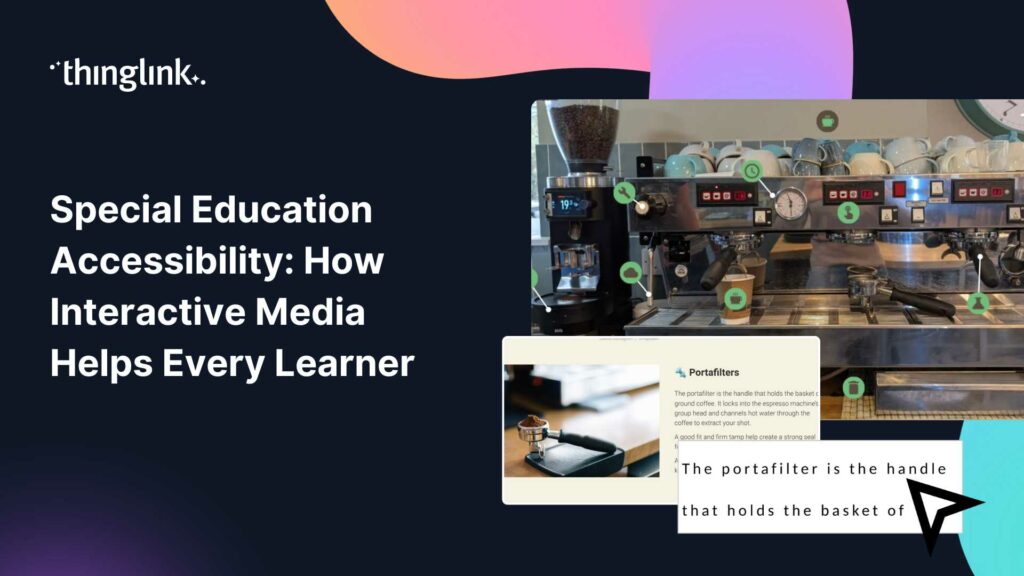
What if every student in your classroom could access the same learning experience, regardless of their communication style, sensory needs, or cognitive profile?...
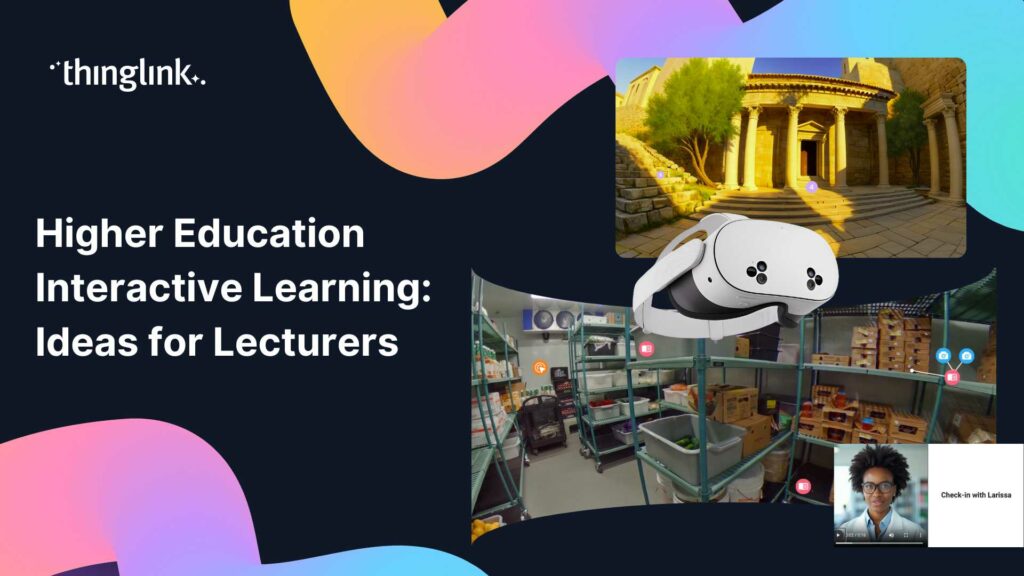
Lecturing to a room of disengaged students is one of the oldest frustrations in higher education. You know the material matters. Getting students to genuinely connect...
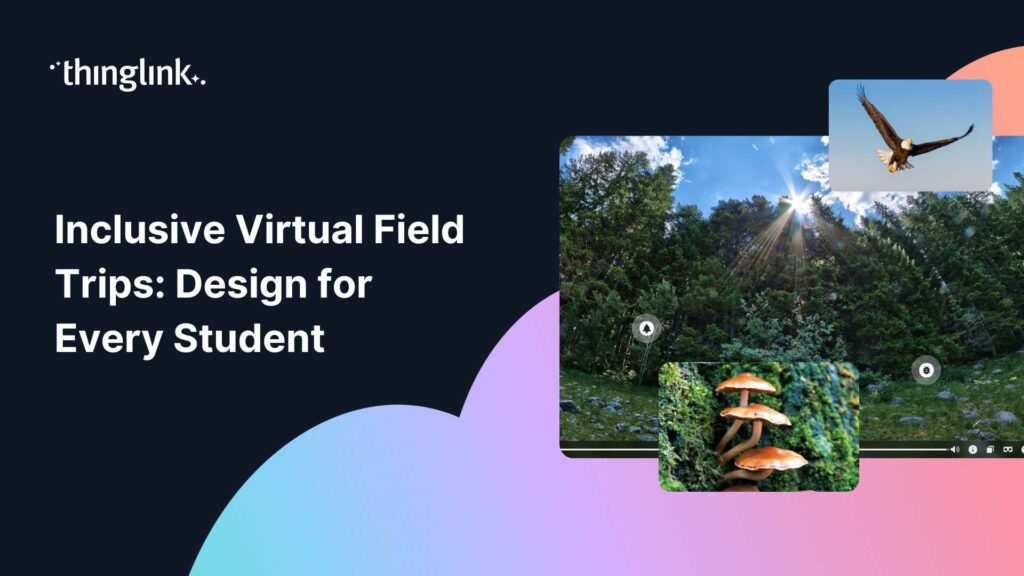
What if every student in your class could visit a mountain observatory, explore a religious site, or step inside a science museum, regardless of mobility, geography,...
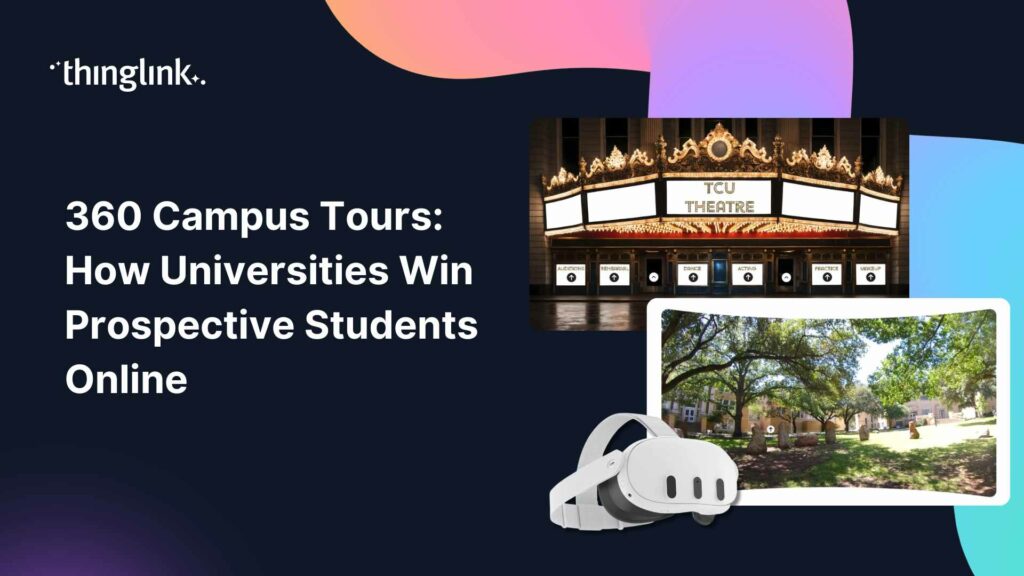
What if a prospective student could walk your campus, peek inside your labs, and feel the energy of your student union, without ever leaving their bedroom? That...
What if your students were genuinely reluctant to stop learning? Not because you threatened a grade penalty, but because the lesson itself felt too good to quit?...
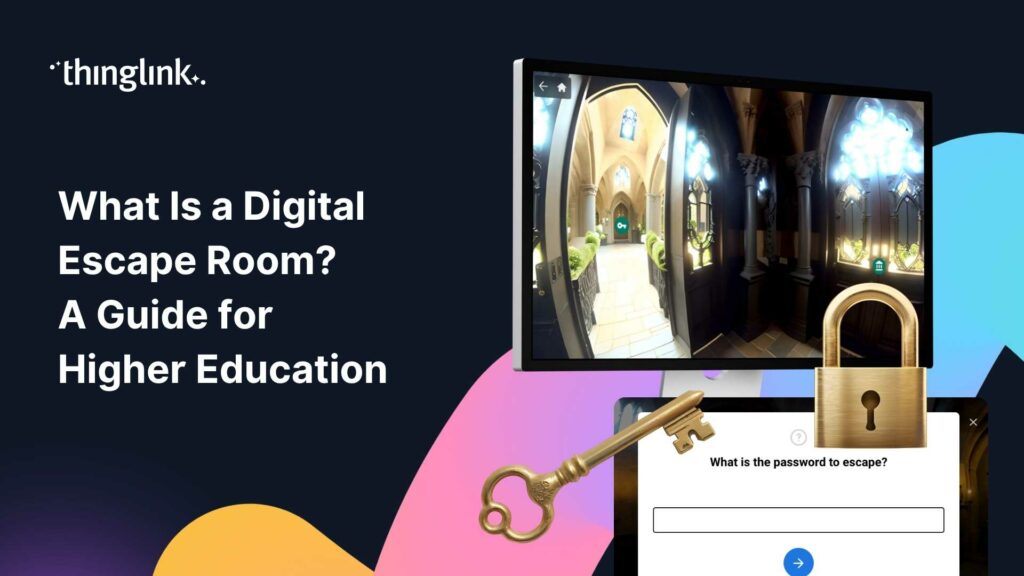
What Is a Digital Escape Room, and Why Are Educators Talking About It? Your students are disengaged. Lecture slides are going unread. Formative assessments feel...
Digital Storytelling Techniques for the Modern Classroom Humans have always told stories. But the tools we use to tell them have changed dramatically, and so has...
What if your students could stand inside a working observatory, walk the floors of a historic building, or explore a rainforest ecosystem — all before lunch? ...
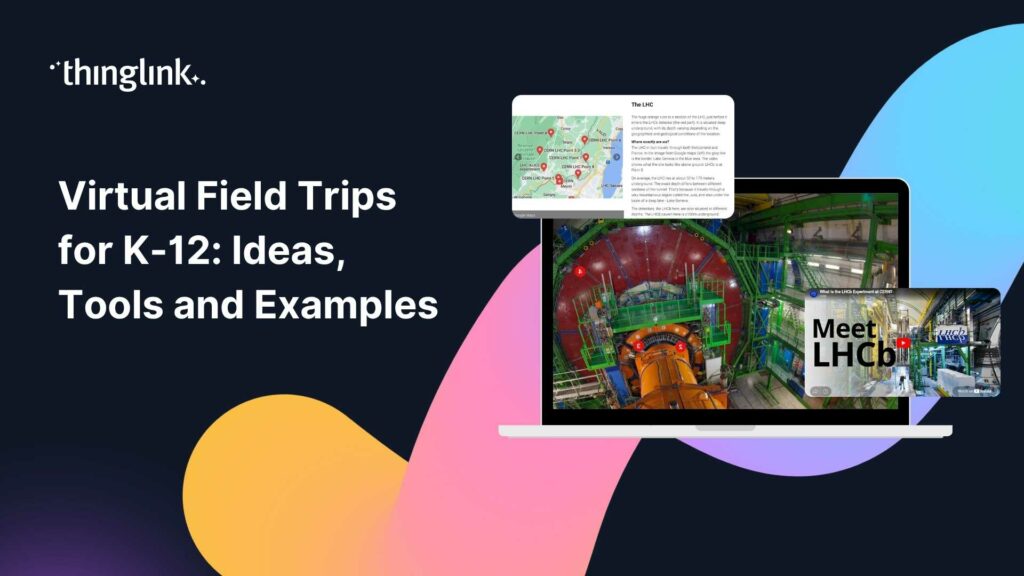
What if your students could stand inside a volcano, walk the halls of a world-class museum, or explore a university campus without leaving the classroom? Virtual...
You have great training content. You also have a team of busy learners who click away from passive video within the first two minutes. Sound familiar? Interactive...
What If Learning Felt More Like Playing? Imagine your students leaning forward in their seats, eager to find out what happens next. Imagine a lecture hall where...
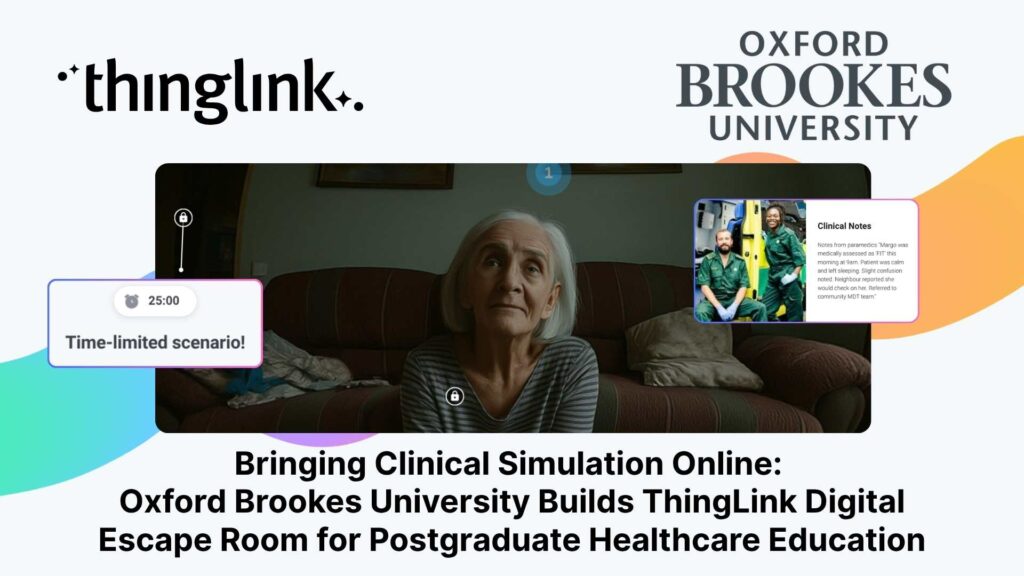
Institution: Oxford Brookes University, Faculty of Health Science and Technology Lead: Emma Mellors, Senior Lecturer Advanced and Specialist Practice / CPD Programmes...
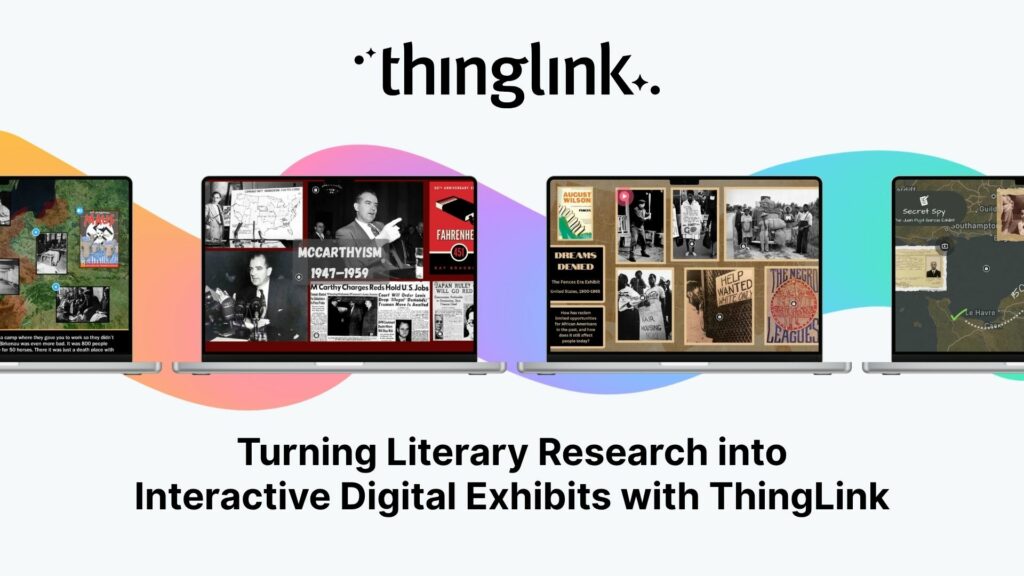
When English teacher Bayly DiPilato set out to reimagine her end-of-year assessment, she had a clear goal: replace the traditional research paper with something...
ThingLink Luminaries is a series of guest blog posts highlighting certified trainers who are creating interactive and immersive experiences to make learning...
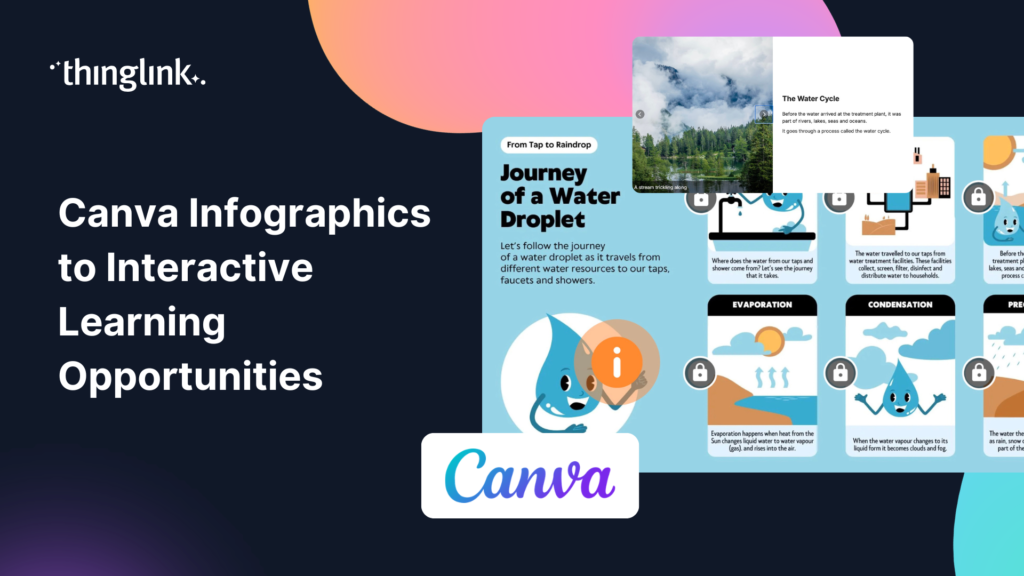
You’ve spent time building a beautiful infographic in Canva. Your students glance at it, maybe read a few bullet points, and move on. Sound familiar? Static...
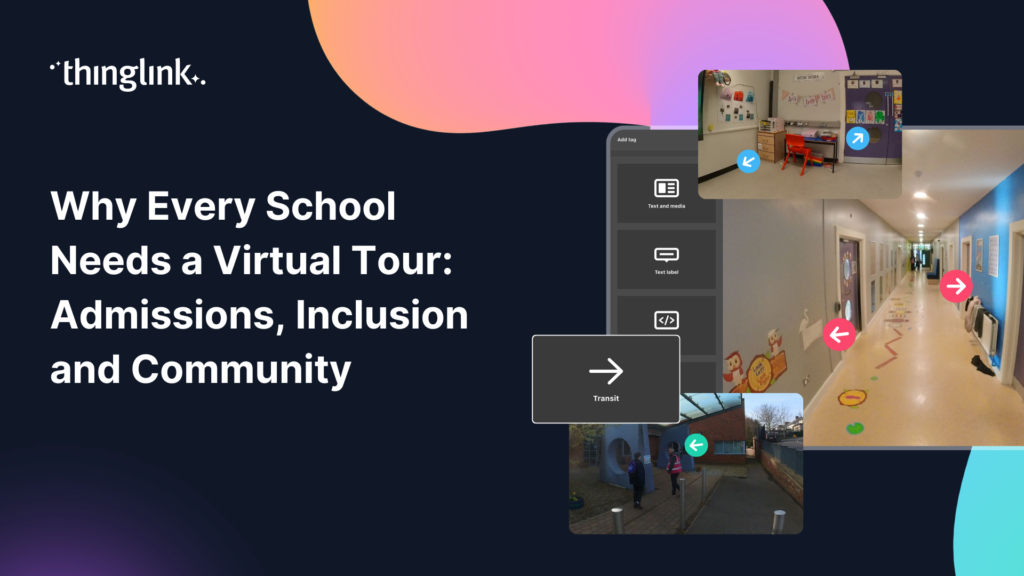
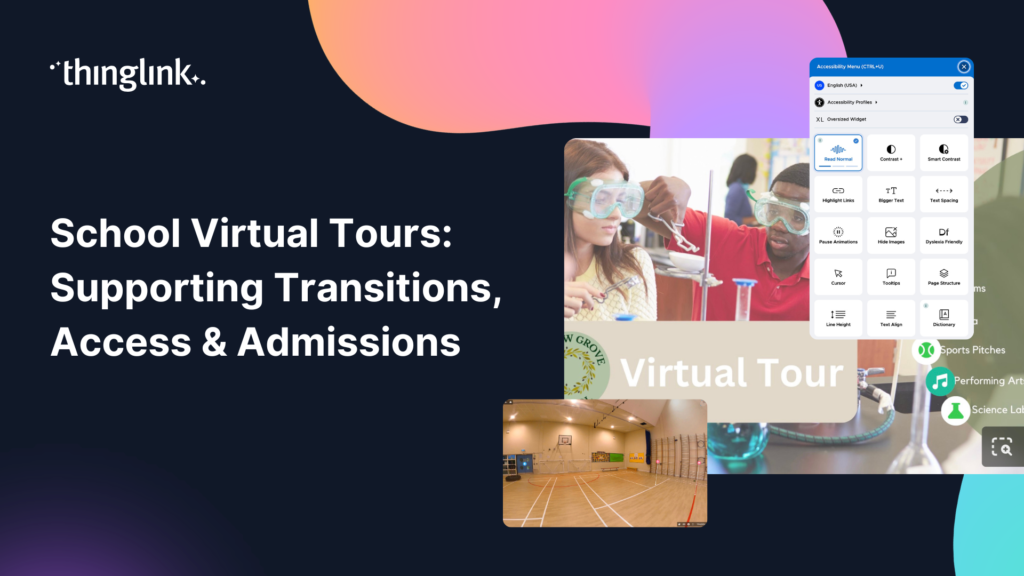
What if every prospective family could walk your school’s corridors before they ever set foot through the door? What if a student with anxiety about starting...
Starting a new school is one of the biggest changes a child faces. For many students, especially those with additional needs, the anxiety of walking into an unfamiliar...
Christopher Sanderson, PhD, is a Senior Lecturer in the Department of Teaching, Learning, and Sociocultural Studies in the College of Education at the University...
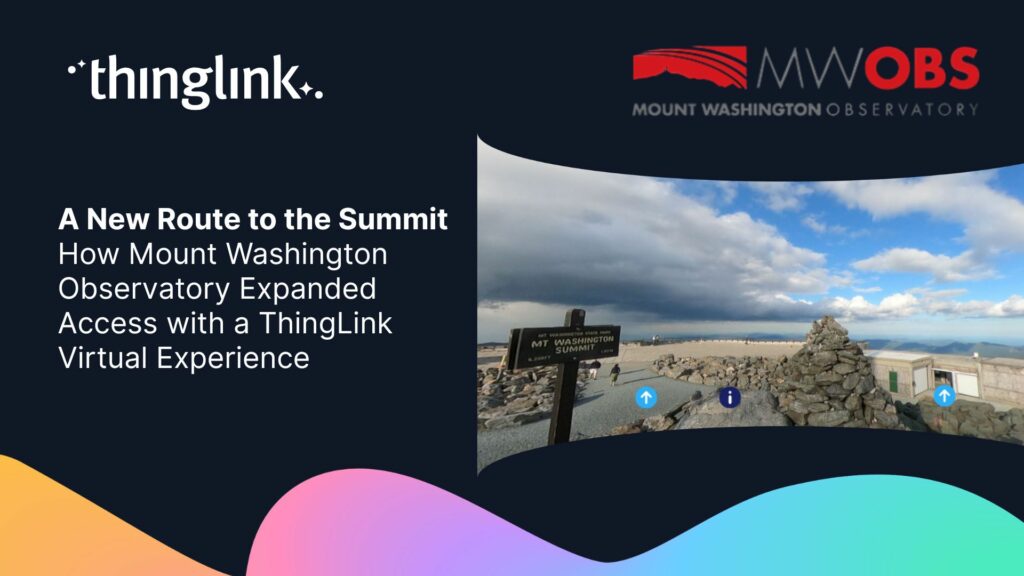
The Background and the Challenge Mount Washington Observatory (MWOBS) sits atop the highest peak in the northeastern United States — home to some of the world’s...
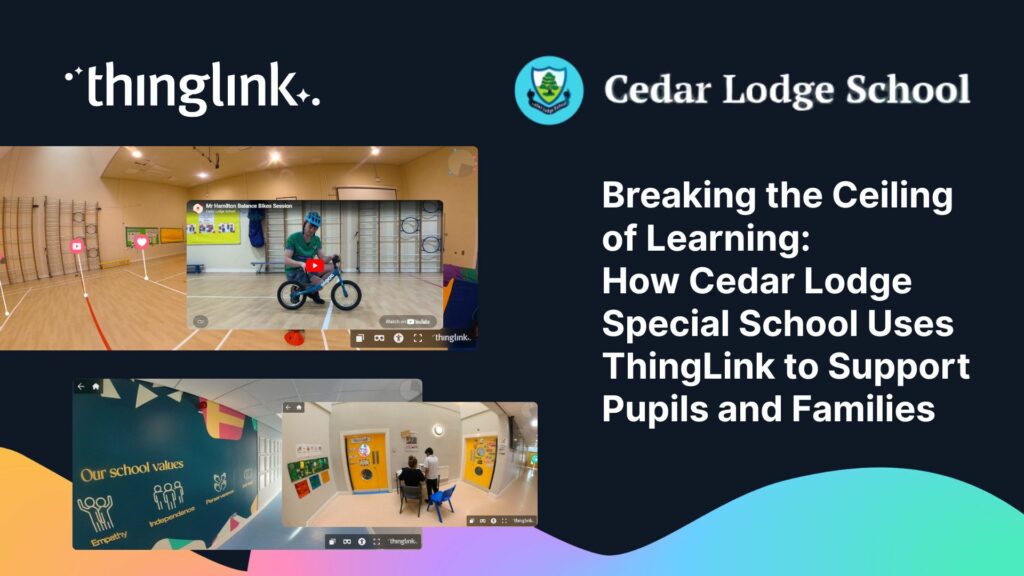
At Cedar Lodge School, Principal Chris Murphy and his team are using ThingLink and other digital tools to create learning experiences that “break the ceiling ...
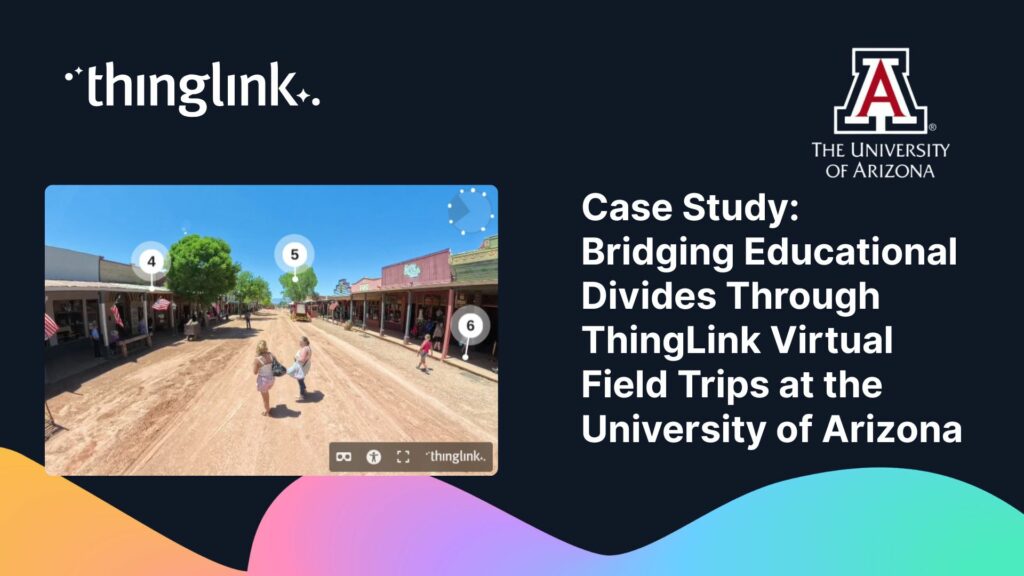
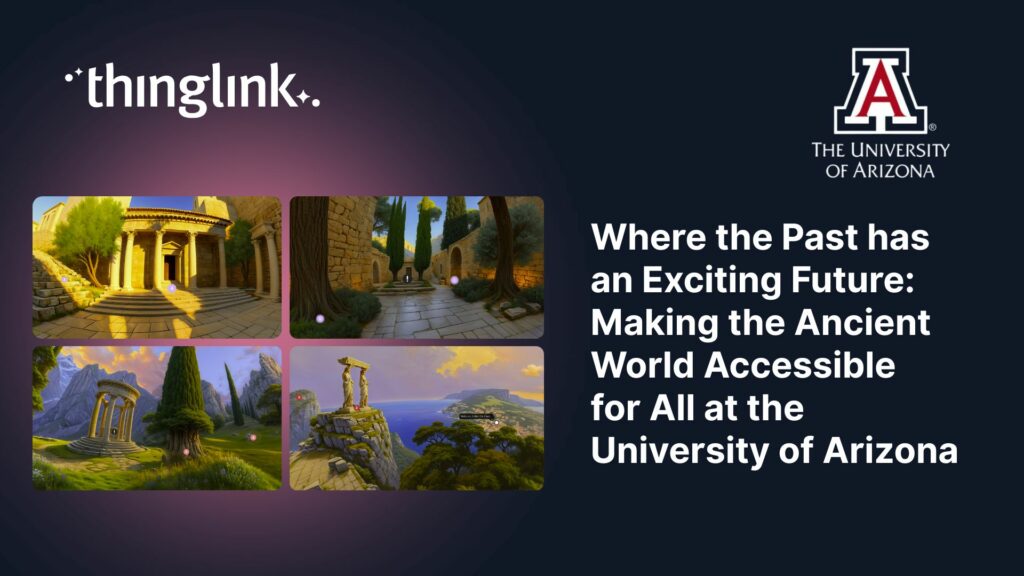
Background Dr. Rob Stephan is a classical archaeologist and Associate Dean of the Franke Honors College at the University of Arizona, whose teaching centers on ...
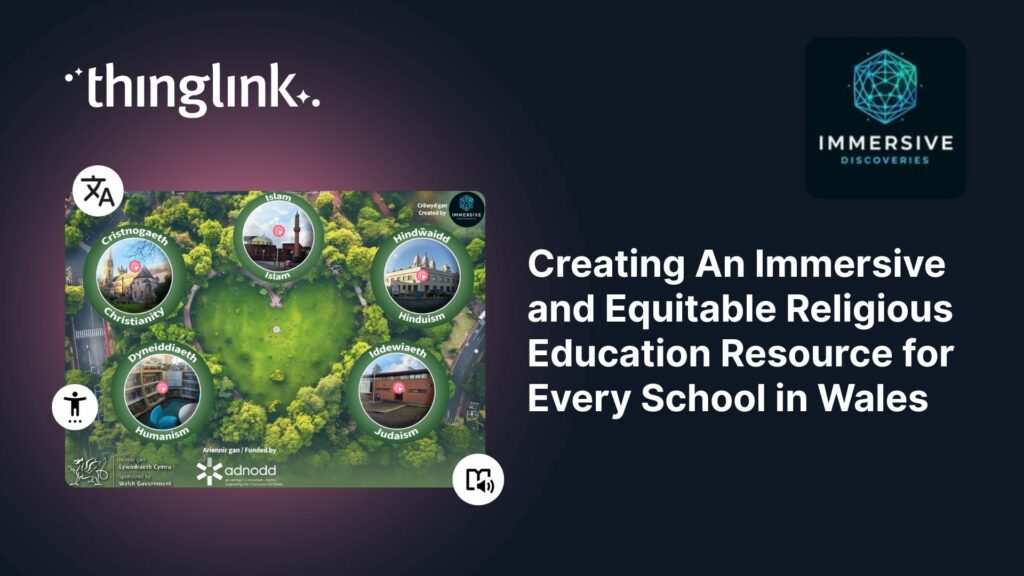
Educator Gemma Zeeman is founder of Immersive Discoveries, and a Qualified Teacher who has taught from Reception to Year 6. She currently works as a Research Assistant...
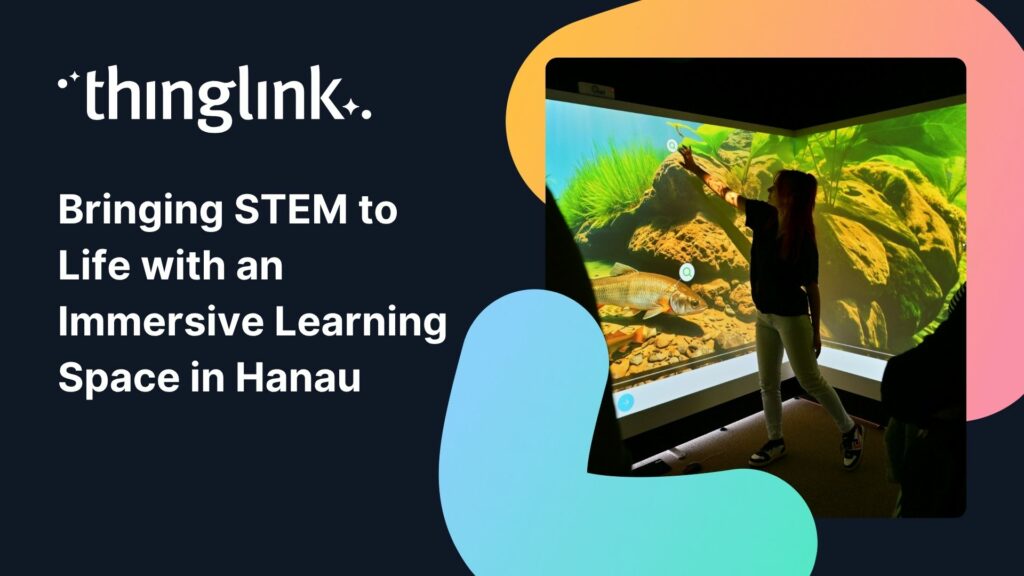
How Kathinka-Platzhoff-Stiftung used ThingLink to build an innovative STEM-focused immersive learning environment – and open it to the whole community. Location:...
Haaste ISS Palveluiden CMS-yksikkö vastaa siivouksesta, kiinteistöhuollosta ja teknisistä palveluista Joensuun alueella. Business Joensuu hallinnoi Joensuun ...
Challenge The CMS unit of ISS Palvelut is responsible for cleaning, property maintenance and technical services in the Joensuu region. Business Joensuu manages ...
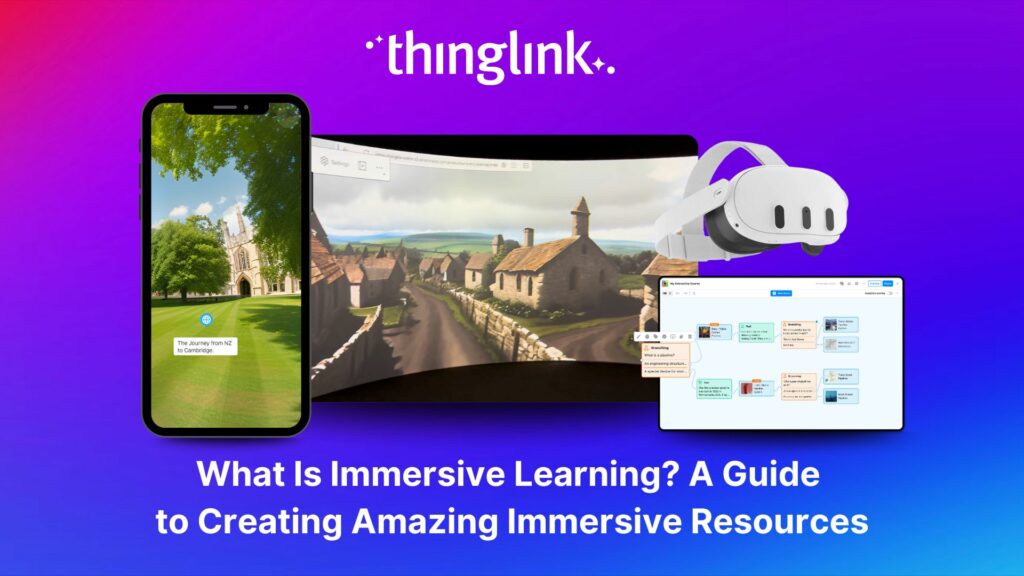
What is Immersive Learning? Immersive learning is a modern approach to education and training that uses interactive, spatial experiences to place learners in real-world...
East Renfrewshire Council’s Education Department sought to improve how they delivered training, shared resources, and communicated with teachers across a diverse...
Helsinki, 12 March 2026 ThingLink has entered into a strategic partnership with Vervenest Technologies Private Limited to support the expansion of immersive learning...
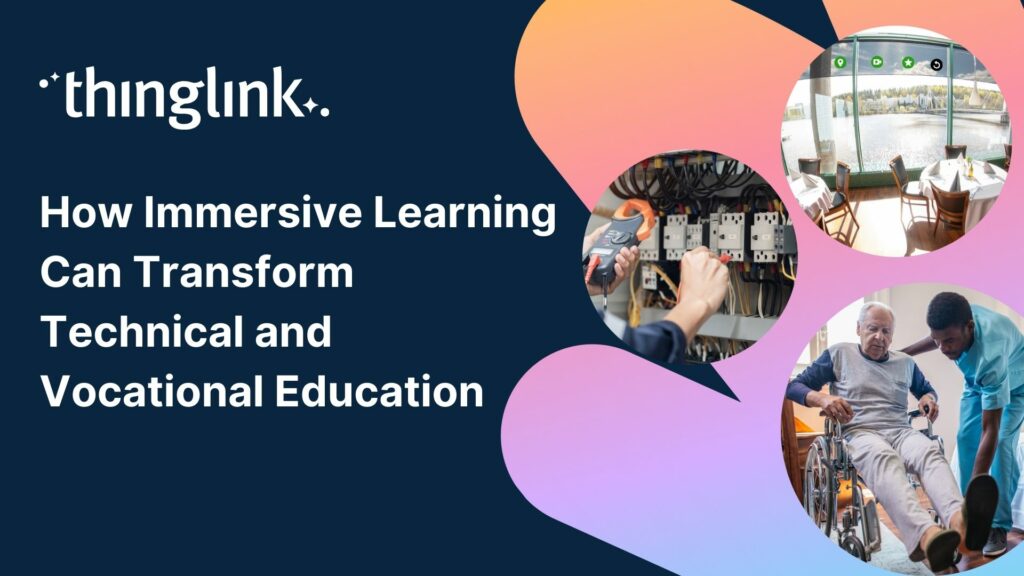
Are you seeking innovative solutions to elevate your vocational education programs? Do you find traditional methods struggle to keep pace with the demands of a ...
Helsinki, 2 March 2026 ThingLink has signed a Memorandum of Understanding (MoU) with the National Skill Development Corporation (NSDC), under the Ministry of Skill...
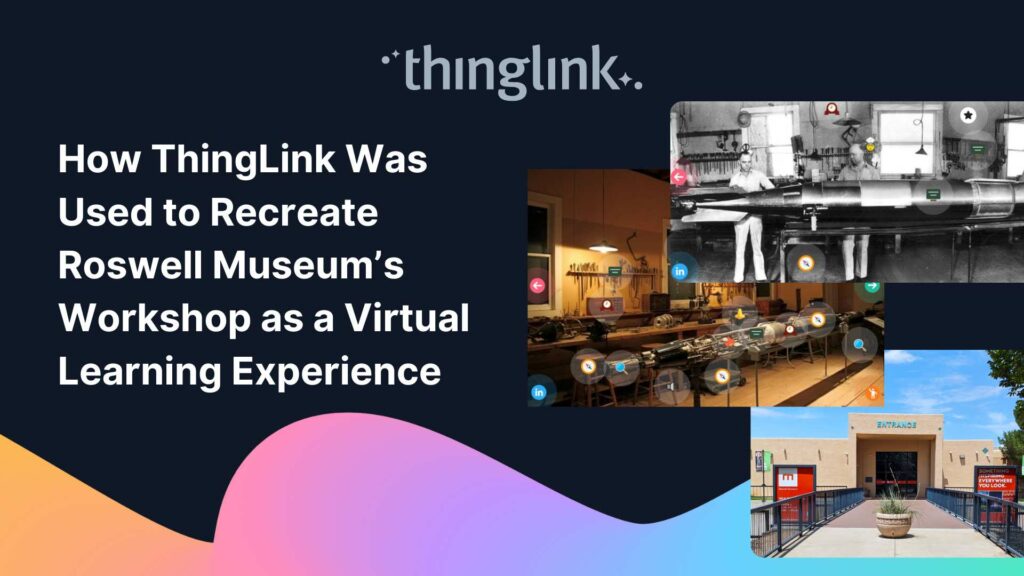
Background: A Museum Lost to Flooding When catastrophic flooding occurred at the Roswell Museum in New Mexico in October 2024, the loss went far beyond physical...
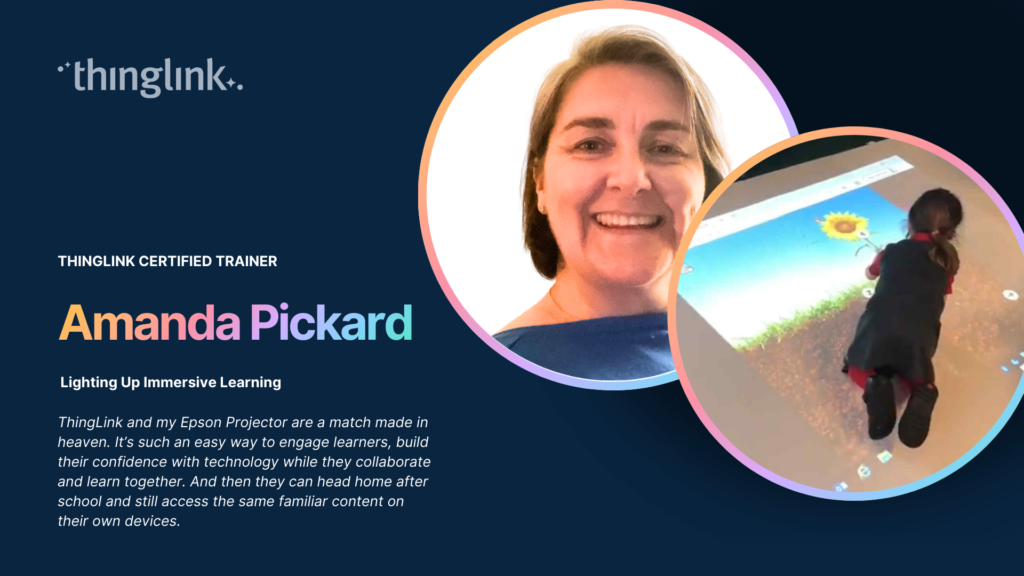
By ThingLink Certified Trainer Amanda Pickard There are moments in teaching when something does more than simply work well. It reshapes the entire learning experience....
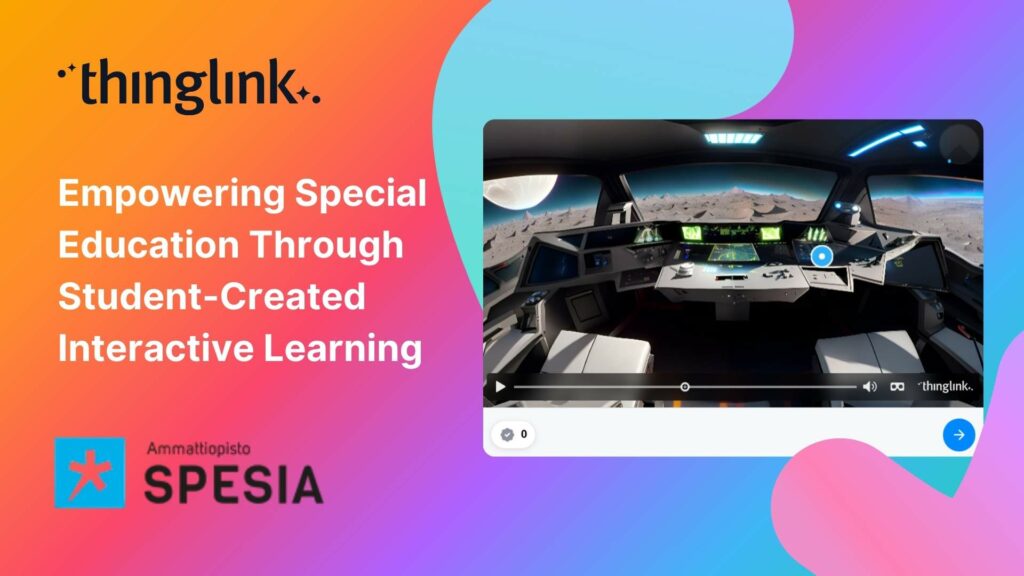
For students at Spesia vocational and special education college, ThingLink isn’t just a learning platform, but a tool for designing and building their own interactive...
Background Tankespirerne (translated as “Thought Sprouts”) is a Danish educational consultancy led by Martin Kongshave, elementary school teacher and practitioner...
Instructure is the global EdTech organization used by over 19 million unique users annually. It’s probably best-known as the home of Canvas, their flagship product...
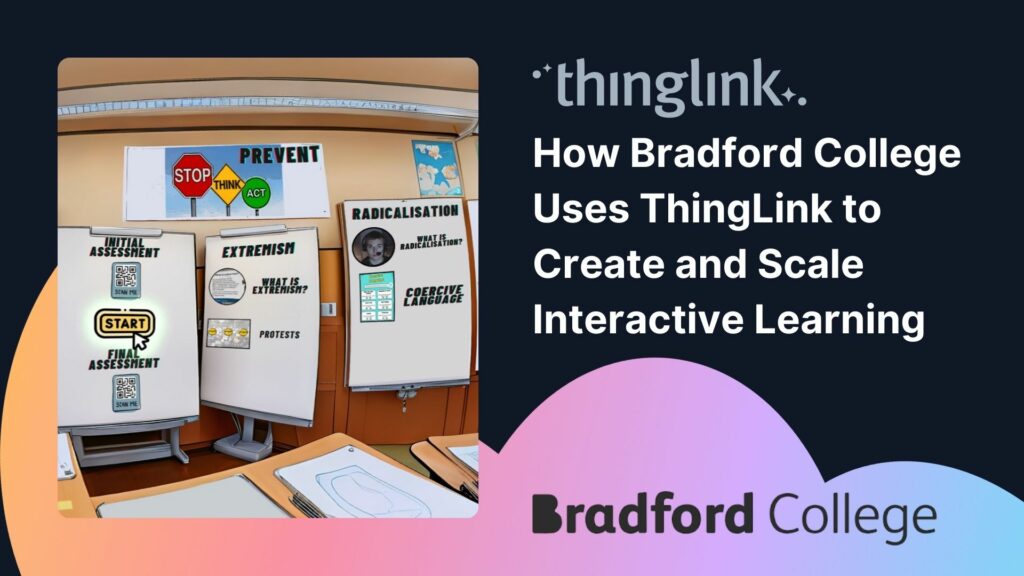
With more than 7,000 learners but only two dedicated digital learning designers, Bradford College faces a challenge familiar to many Further Education institutions:...
Transforming Education with Gamified Learning Experiences Education stands on the edge of a significant transformation, driven by innovative technologies that redefine...
This teacher training resource for students on the PGCE course (Post Graduate Certificate in Education) demonstrates how ThingLink can be used to create interactive...
For many higher and further education institutions, the integration of new technologies like AV equipment often presents a double-edged sword. While advancements...
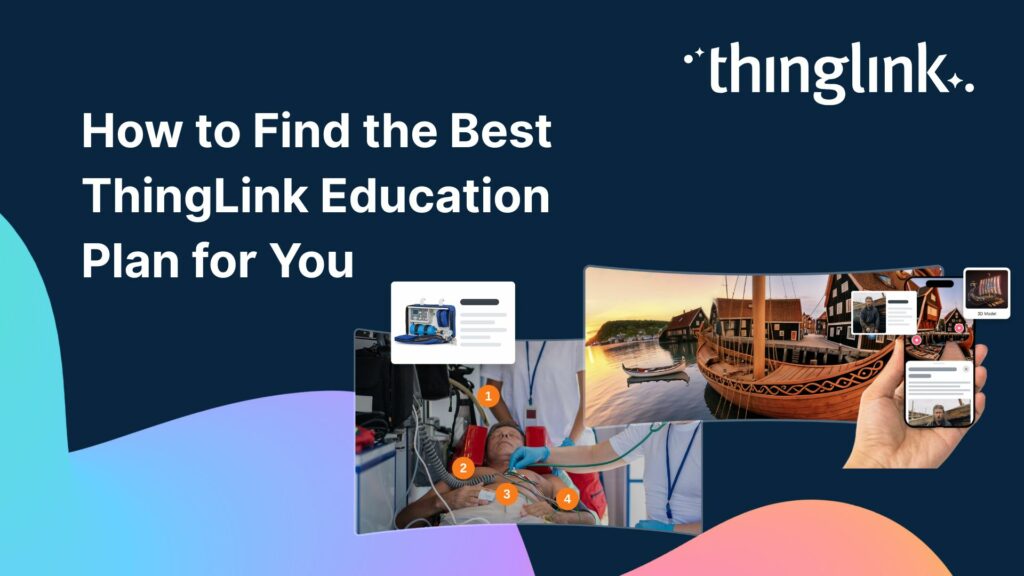
Plans for Every Educator and Every Institution We’ve listened to educators about what they need from their ThingLink plans for their students, school districts,...
Nutrition and dietetics higher education programs face a critical challenge common across healthcare studies: effectively connecting theoretical knowledge with ...
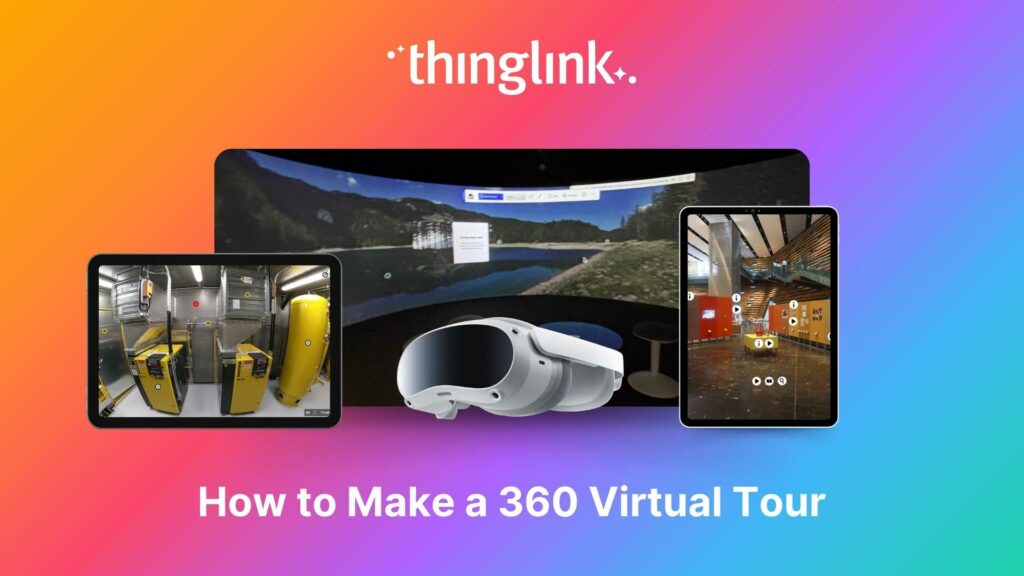
Looking for an easy way to create immersive 360° virtual tours or virtual expeditions that work seamlessly in Virtual Reality (VR)? ThingLink is the ultimate all-in-one...
Some further education courses can move online easily, but how do you engage your online students in hands-on subjects involving machinery, materials and complex...
Creating accessible learning experiences is critical for educators, trainers and student creators, but it need not be daunting! ThingLink is a platform that allows...
✨ ThingLink Idea Spark: Cultural Experience Make remote places across the globe accessible for students to explore on their school devices, such as laptops or...
¿Alguna vez has deseado llevar a toda tu clase a la selva amazónica, a la superficie de Marte o a los pasillos del Louvre o del Smithsonian… todo antes del ...
Ever wished you could take your entire class to the Amazon rainforest, the surface of Mars, or the halls of the Louvre or the Smithsonian… all before lunch? ...
A medida que el aprendizaje inmersivo continúa transformando las aulas en todo el mundo, cada vez más escuelas y universidades están comenzando a explorar el...
Para que tu camino en la creación de contenido educativo en XR sea lo más sencillo posible, hemos seleccionado una colección de recursos gratuitos que te ayudarán...
To make your journey through XR learning content creation as easy as possible, we’ve curated a collection of free resources that will help get you started. Packed...
As immersive learning continues to transform classrooms around the world, more schools and colleges are beginning to explore the potential of Meta Quest headsets...
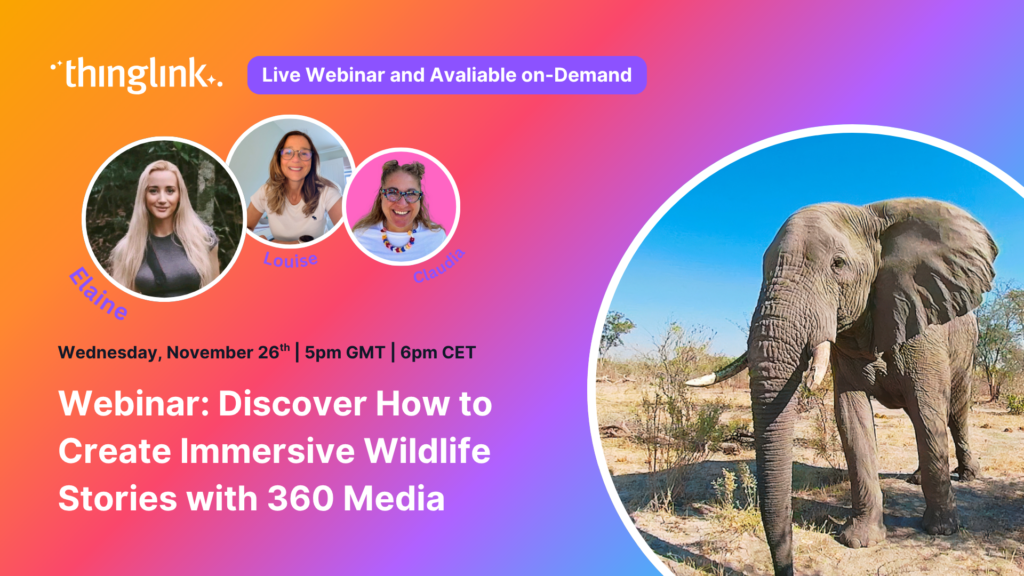
🐘 Inspire young minds to explore, protect and connect with nature using immersive storytelling, 360° content and ThingLink’s creative tools. Join us for an...
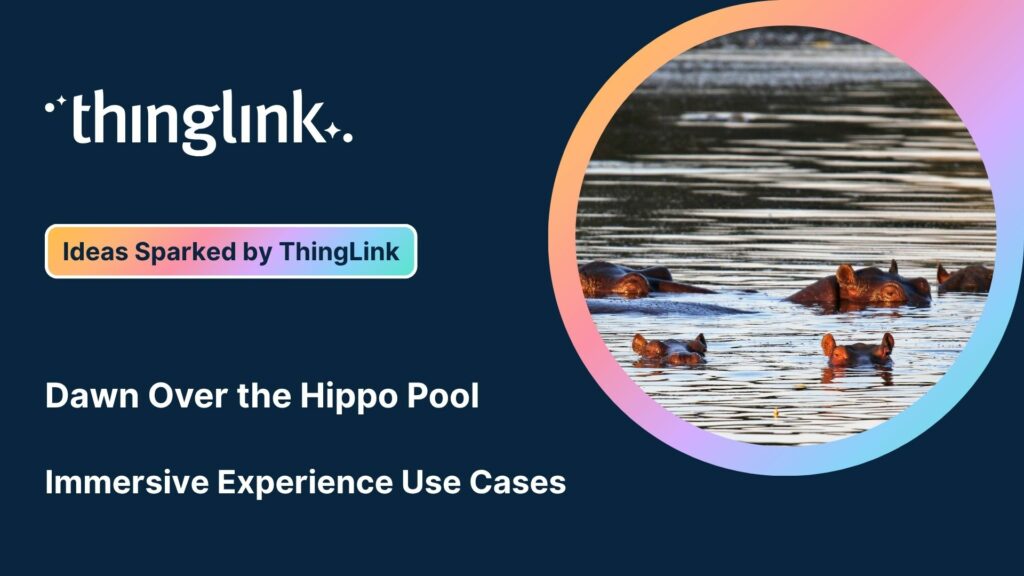
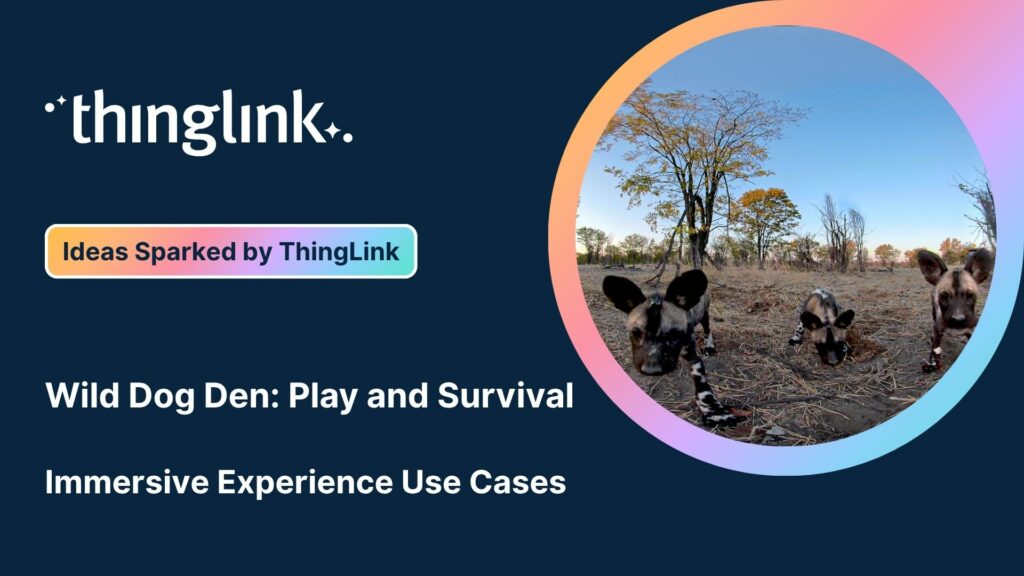
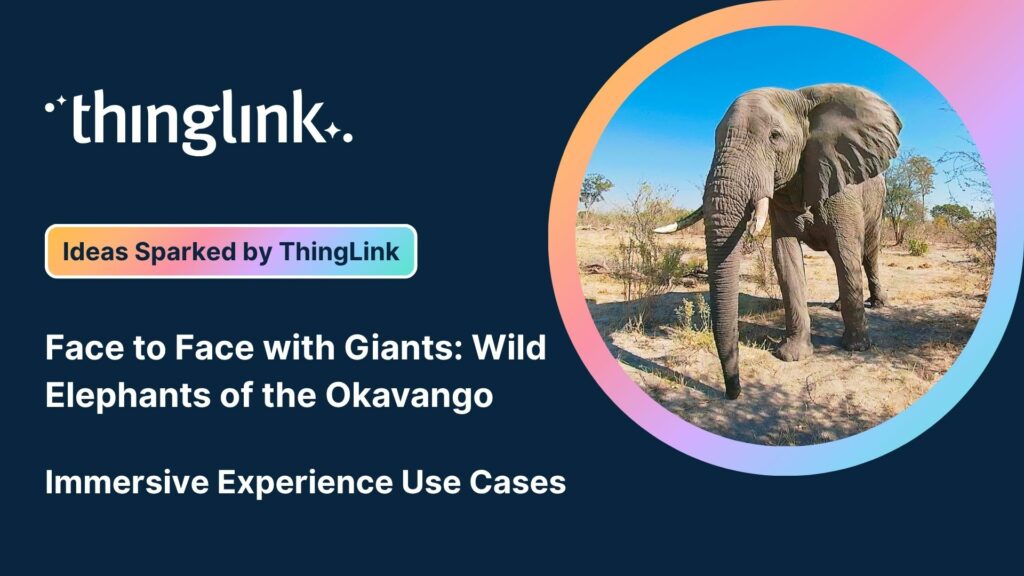
ThingLink has recently made available an inspiring set of three conservation-based 360° videos, designed for learners, educators, and anyone curious about how ...
From transmission network operators in Finland to a renewables training academy in Scotland, manufacturers in the U.S., and global industrial leaders, ThingLink...
ThingLink is a fantastic tool for creating interactive and immersive images, videos, and virtual tours. It allows you to bring visuals to life by adding hotspots,...
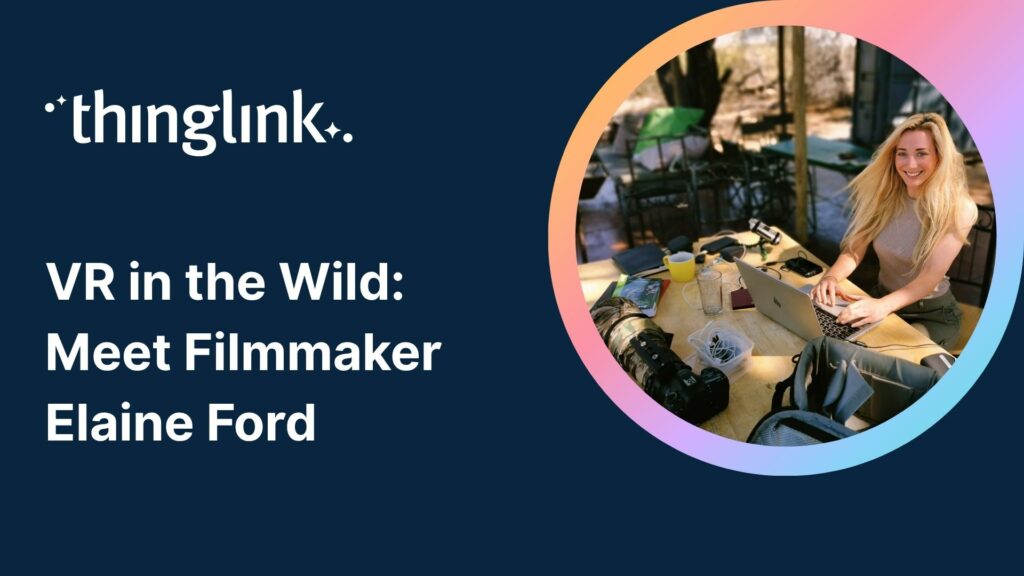
We’re delighted to collaborate with Elaine Ford to bring you a truly unique collection of 360° video footage captured in the wild. These immersive scenes offer...
We’re delighted to collaborate with Elaine Ford to bring you a truly unique collection of 360° video footage captured in the wild. These immersive scenes offer...
We’re delighted to collaborate with Elaine Ford to bring you a truly unique collection of 360° video footage captured in the wild. These immersive scenes offer...
At Hackbridge Primary, the introduction of ThingLink has transformed teaching and learning in a range of ways. In just a year, staff have seen shifts in how pupils...
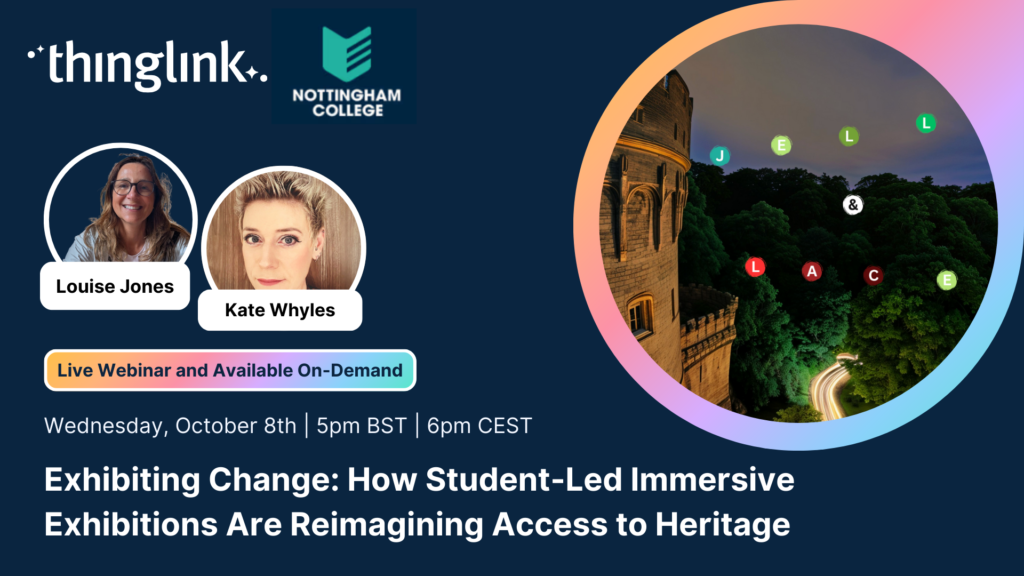
Join Nottingham College’s Digital Innovation and Development Coach (and ThingLink Certified Trainer) Kate Whyles to hear about two inspiring case studies where...
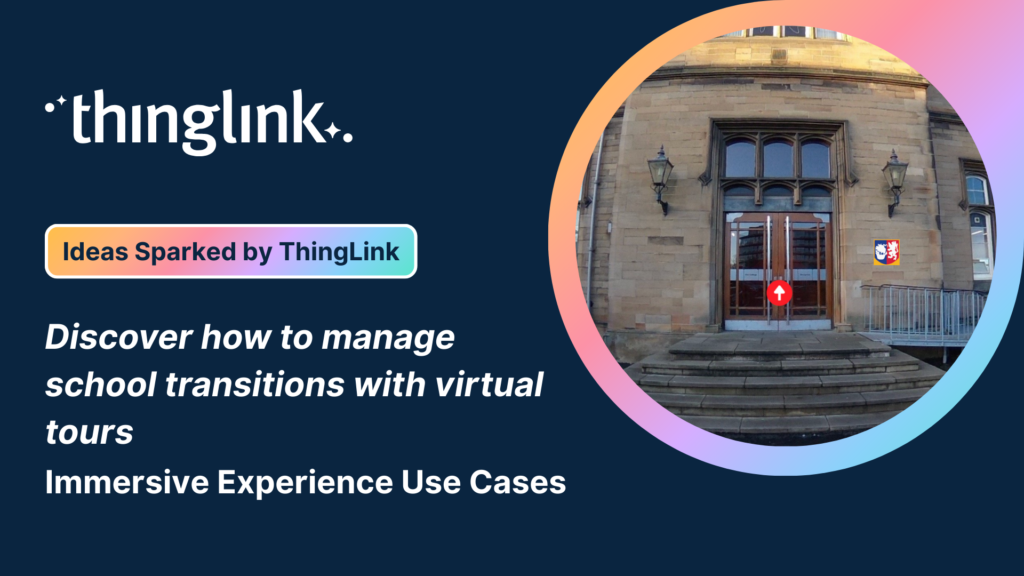
✨ ThingLink Idea Spark: School Transitions Starting a new school can be exciting but also daunting for young people and their families. This immersive experience...
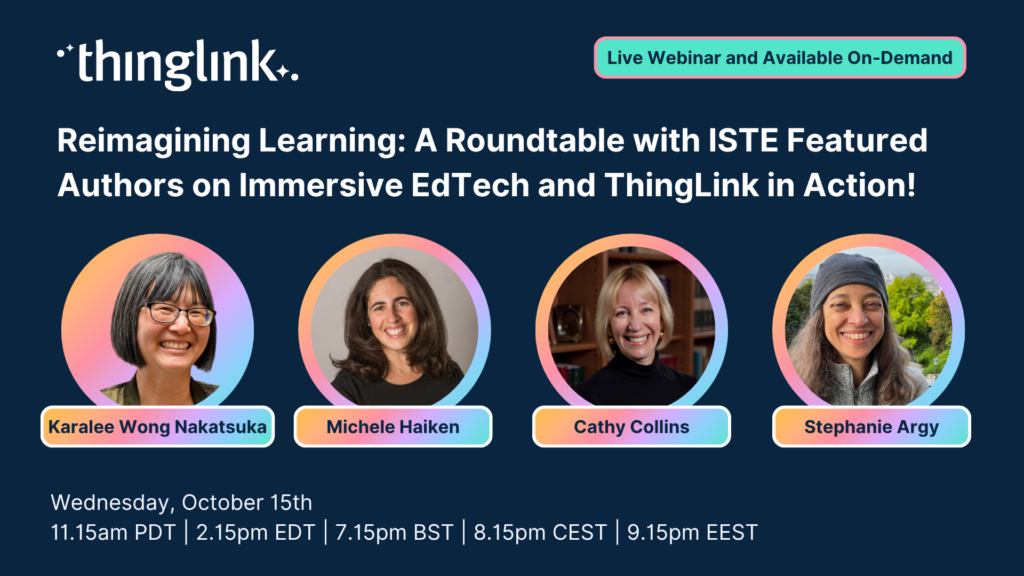
Webinar: Reimagining Learning: A Roundtable with ISTE Authors on Immersive EdTech and ThingLink in Action! ✨ Featuring ISTE Recognised Authors: Karalee ...
✨ ThingLink Idea Spark: Secrets of the Pyramids: Maths in Ancient Architecture Bring ancient engineering to life with immersive VR. In this experience, students...
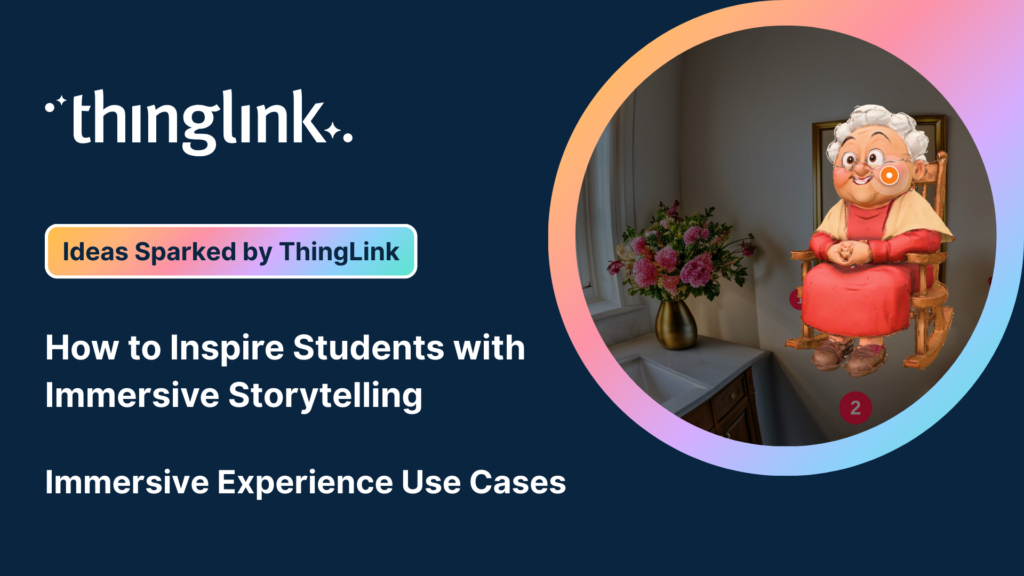
✨ ThingLink Idea Spark: The Power of a Story – Immersive Storytelling for Students This immersive lesson helps students strengthen their storytelling skills...
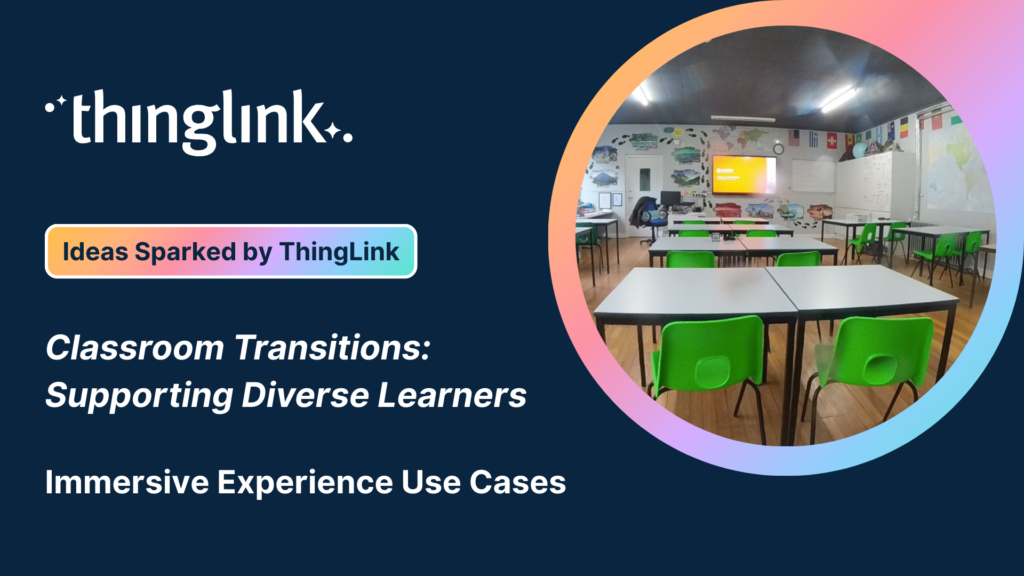
✨ ThingLink Idea Spark: Classroom Transitions Starting a new class or moving into a different learning space can feel exciting or overwhelming. This quick immersive...
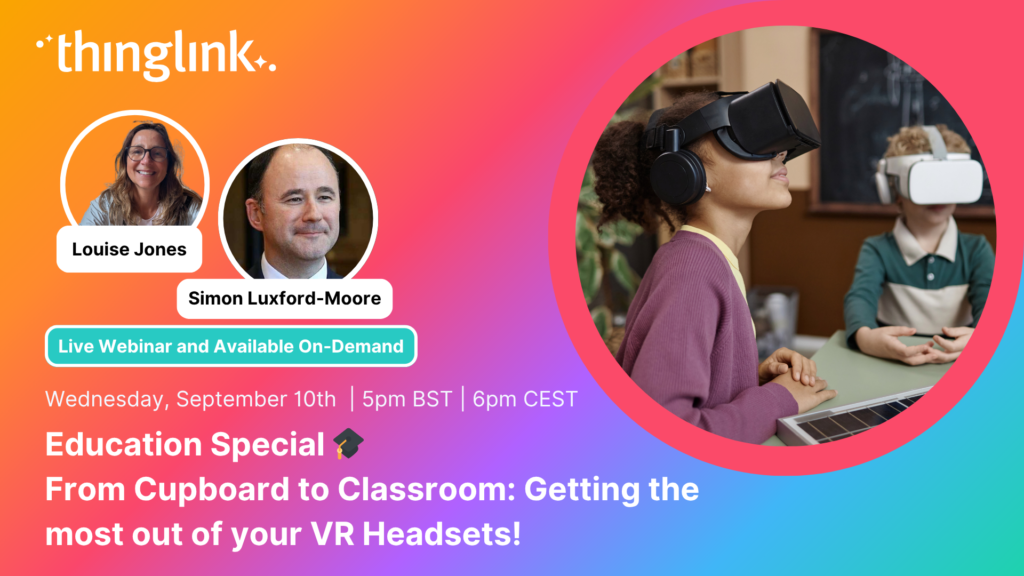
Education Special | From Cupboard to Classroom: Getting the most out of your VR Headsets! Have a set of VR headsets sitting in the cupboard, barely touched since...
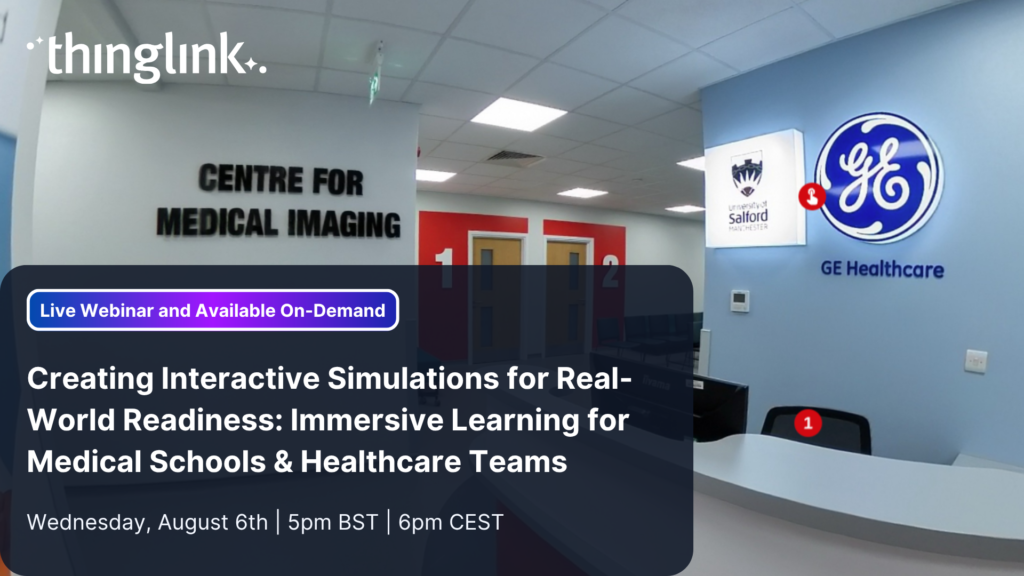
Creating Interactive Simulations for Real-World Readiness: Immersive Learning for Medical Schools & Healthcare Teams Where and When 📅 Date: Now On-Demand...
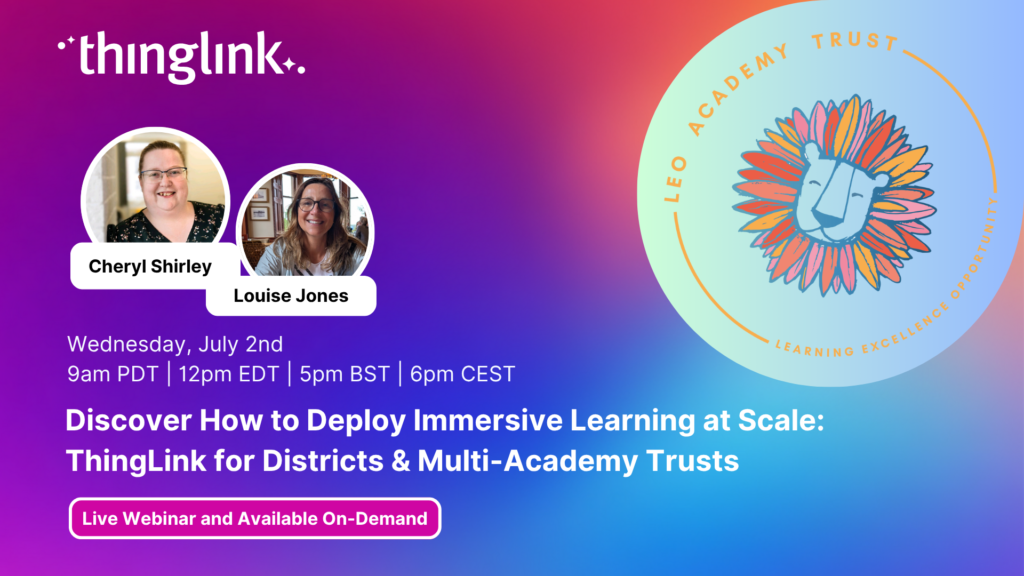
LEO, a forward-thinking British multi-academy trust, has pioneered a structured, pedagogy-first approach to digital learning that has driven significant gains in...
Louise Jones
10 min read
New Caney Independent School District (ISD) added ThingLink to their roster of online learning resources in 2020 and it soon became a valuable tool with many applications....
At ThingLink, our mission is to empower educators, trainers, and content creators to build truly impactful digital learning experiences. We believe that great learning...
Solve System-Wide Challenges with Easy Creation, XR/VR Integration & Interactive Content Join Louise, ThingLink and Cheryl Shirley, Director of Digital Learning...
The other day I was watching my close friend’s seven-year-old son do something that completely stopped me in my tracks (if you’ll excuse the pun). Nico...
The foundations of ThingLink are rooted in the socio-cultural theory of learning developed by Lev Vygotsky. My own journey began in 2003 at the Center for Activity...
When their usual arts venue became unavailable for Nottingham College’s end-of-year show, the organizers found the ideal way to recreate and share the works...
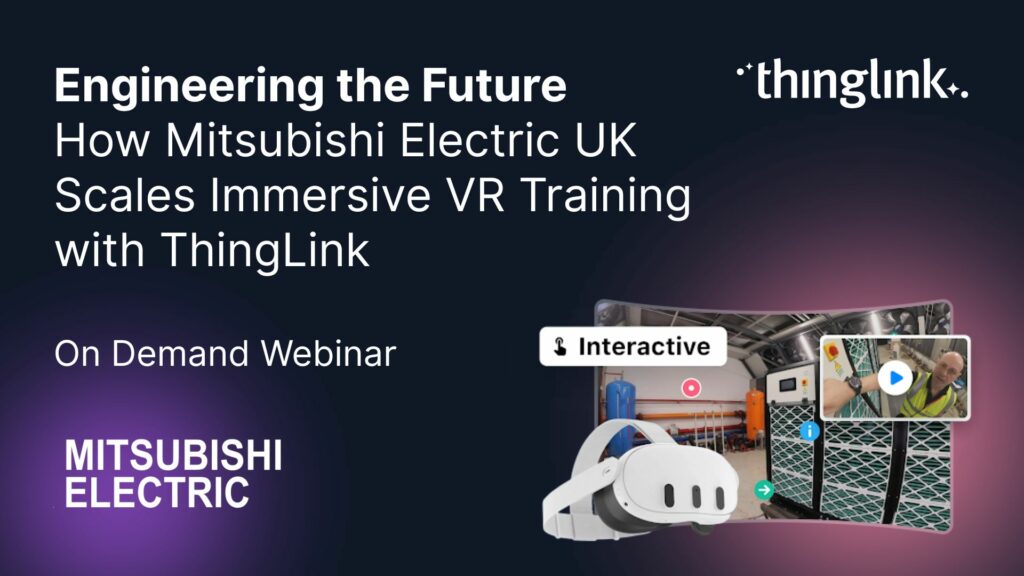
How Mitsubishi Electric UK Scales Immersive VR Training with ThingLink Securing the Next Generation of Engineers: How Mitsubishi Electric is Solving the Talent ...
Turn Summer Experiences into Story-Driven Learning: How Students Can Capture and Reflect using Immersive Journals Make it a Summer to Remember Join Louise Jones...
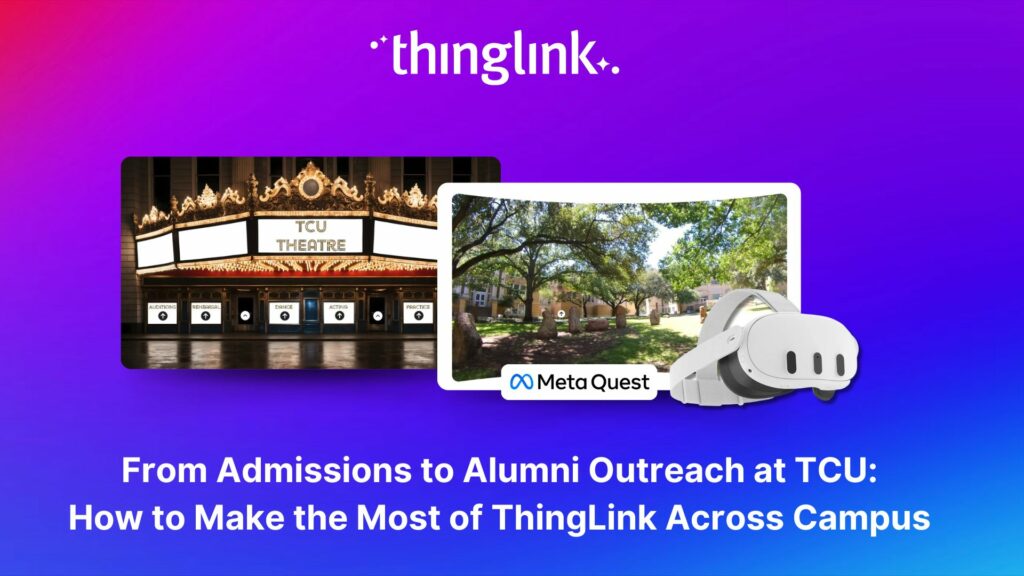
Background Texas Christian University (TCU) is a private university of around 9000 undergrads, situated in the city of Fort Worth within the Dallas Fort Worth metroplex....
Stockholm, April 8th, 2025 – ThingLink, the leading platform for creating and sharing immersive learning experiences across platforms and devices, is now available...
Immersive learning technologies like ThingLink are transforming education! Research shows they improve engagement, comprehension, and knowledge retention—making...
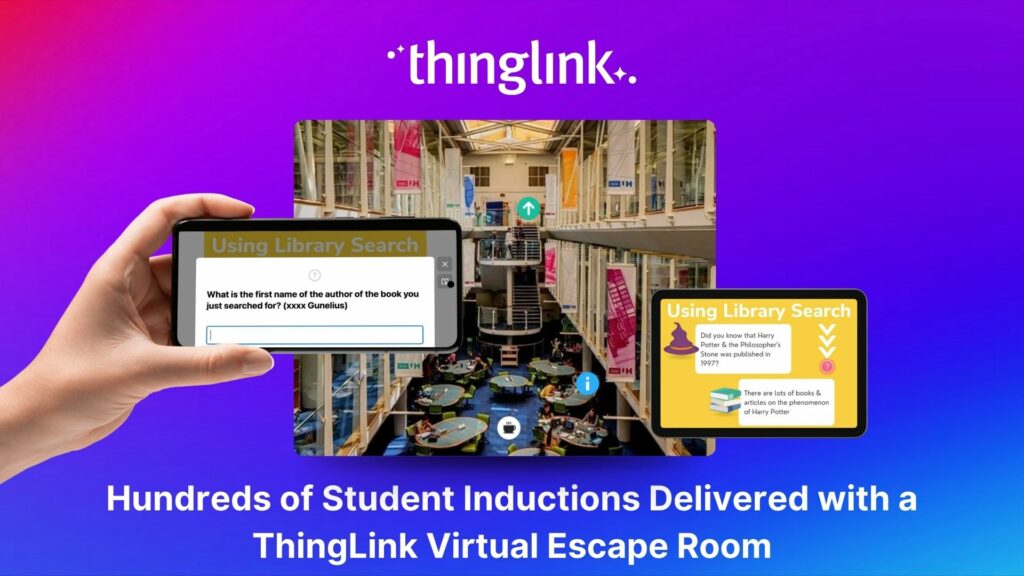
Louise Conway, Information Manager at the University of Hertfordshire (UK) has created an ingenious, engaging virtual escape room to ensure that new students are...
ThingLink, the AI-assisted immersive content creation platform for training and education, continues to grow its global team alongside the expansion and development...
Spring into Immersive Learning! 🌱 Join your hosts Louise and Claudia for a playful and engaging session on the rise of immersive learning! We’ll explore new...
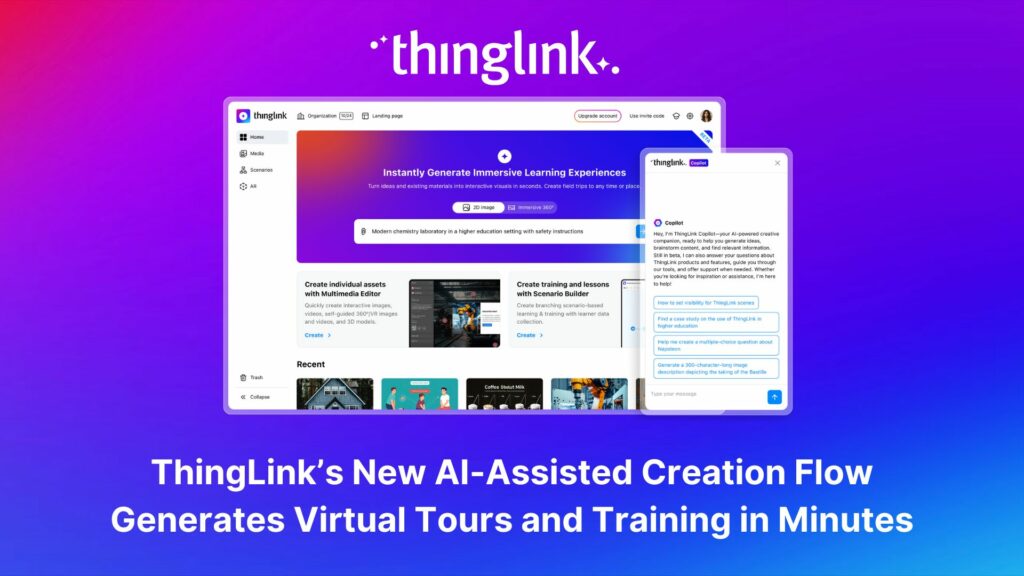
As digital transformation accelerates across industries, the demand for intuitive AI tools that empower non-technical users to create sophisticated learning experiences...
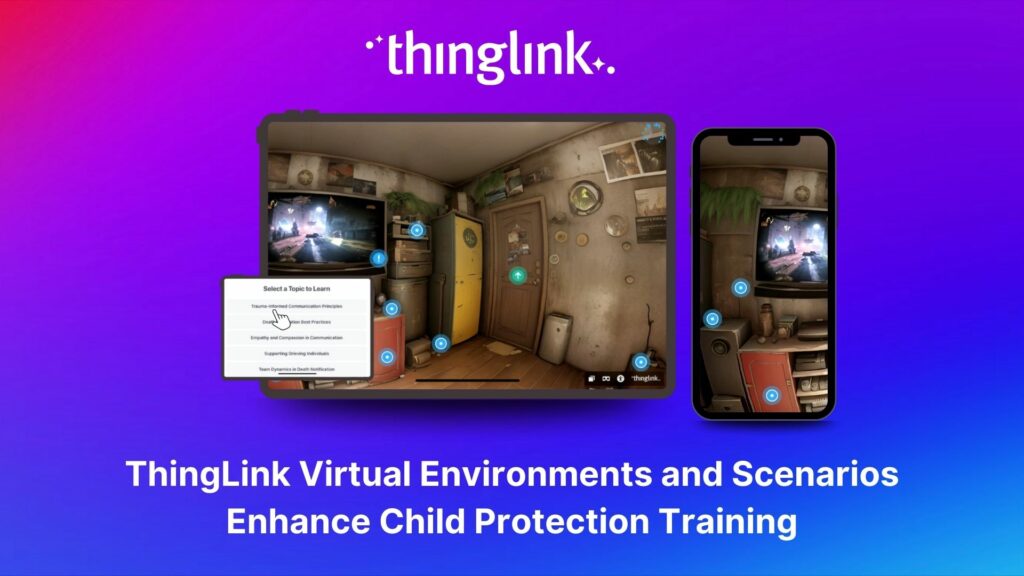
Background Zero Abuse Project (founded in 2018) is a non-profit organization based in the US. Their mission is “To protect children from abuse and sexual assault,...
Join us for an inspiring and practical webinar where Crosthwaite Primary School share how they’ve designed their curriculum to foster creativity, community collaboration,...
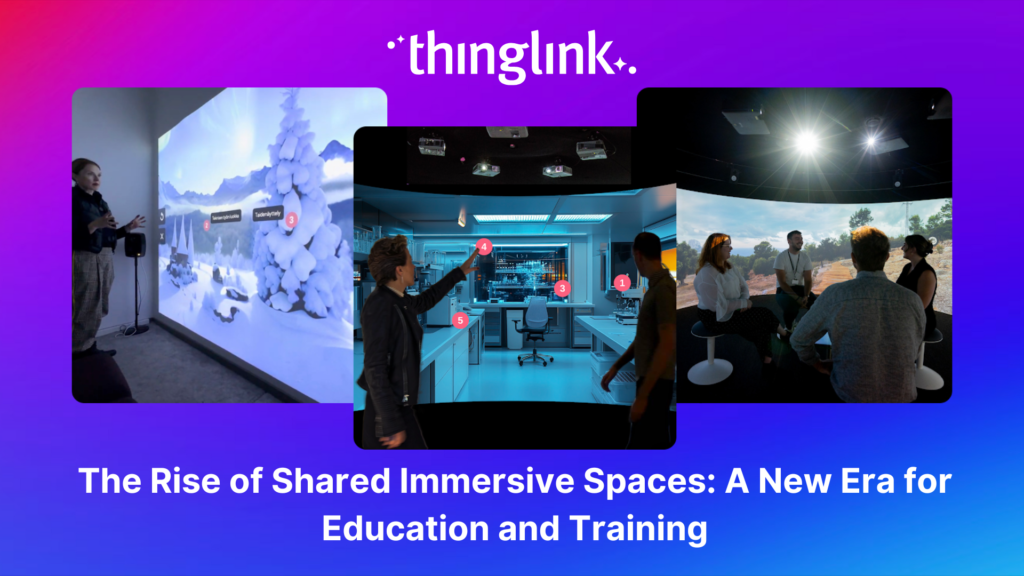
The increasing interest and adoption of shared immersive spaces in recent years reflects a shift in the way we see the future of learning, future of education, ...
Join us for an unmissable webinar celebrating a year of innovations with ThingLink! 🌟 We are excited to invite you to discover all the incredible updates we’ve...
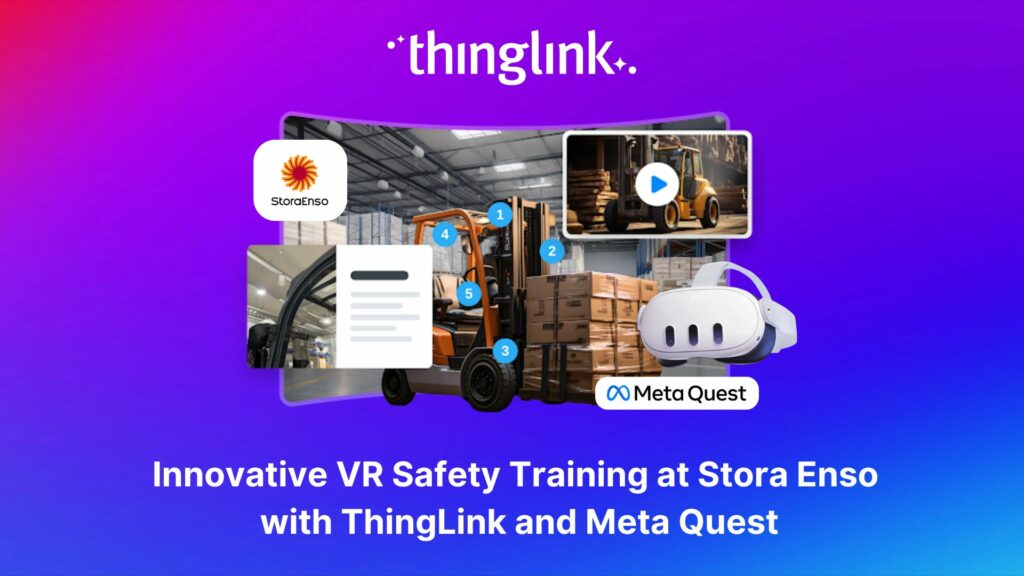
Updated 18.6.2025 Background Stora Enso is a company based in Finland and Sweden, and develops solutions based on wood and biomass for a diverse range of industries...
Join us for an exclusive look into how Canva and ThingLink complement each other to create a powerful toolkit for immersive learning experiences! Are you ready ...